When a solution is exported from ACP, the conduit it generates carries the properties you entered into the ACP Input Schedules. The ACP Edit tools keep that data intact as the conduit is modified throughout the editing workflow.
Sometimes your full workflow may require those properties to be transferred to custom parameters within your project. The Map Parameters tool streamlines this process by transferring properties from selected Source Parameters to their mapped Target Parameters.
Map Parameters is not limited to ACP properties. Any Text or Yes/No parameter containing a property may be mapped to another Text or Yes/No parameter. For example, if your project identifies homerun boxes using a custom parameter, Map Parameters may be used to push that value into ACP_E_Fixture ID before routing begins, making it a useful tool at any point in your workflow, not just at the end.
These properties may be applied to three different selection scopes:
Active Selection - Only the elements directly selected within the ACP view prior to activating the tool.
Active View - All elements within the ACP view in the same category(s) as the elements selected prior to activating the tool.
Entire Project - All elements within the categories of the elements selected prior to activating the tool.
The Map Parameters tool is Selection Specific so the steps below reference the Modify tab workflow.
.png)
Map Parameters in a Model view
Select one or more elements within the project model view.
Plan, Section, or 3D view
In the Modify tab, click the
 Map Parameters tool.
 Set the
 Selection Scope at the top of the Map Parameters window.
 Verify the
 selected categories and element count below the Selection Scope.
 Map Parameters will only list common parameters found in ALL selected categories.
Select a
 Source Parameter using the drop down list.
 The drop down list will automatically filter out any:
Non-Text parameter Types.
Parameters which do not have at least one element from the Selection Scope containing a property.
Select the
 Target Parameter using the drop down list.
 Click
 +Add Mapping to include additional parameter map pairs to the selection.
 Click
 Run to finalize the mapping, and transfer properties across parameters.
 Or click Cancel to exit the tool without applying the mapping.
Map Parameter from a Schedule view
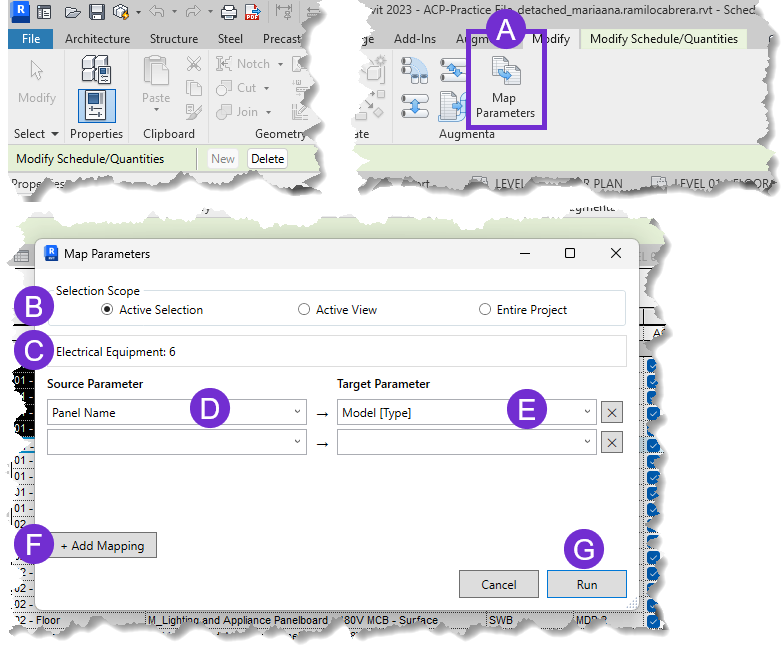
Select one or more rows from the Revit schedule view.
Click the
 Map Parameters tool from the Edit panel in the Augmenta Tab.
 Set the
 Selection Scope at the top of the Map Parameters window.
 Active Selection - changes will be applied to all of the elements in that row.
This may be multiple elements depending on the sorting/grouping and Itemize every instance settings.
Active View - changes will be applied to the elements visible in the schedule.
Verify the
 selected categories and element count below the Selection Scope.
 Map Parameters will only list common parameters found in ALL selected categories.
Select a
 Source Parameter using the drop down list.
 The drop down list will automatically filter out any:
Non-Text or Yes/No parameter Types.
Parameters which do not have at least one element from the Selection Scope containing a property.
Select the
 Target Parameter using the drop down list.
 Click
 + Add Mapping to include additional parameter map pairs to the selection.
 Click
 Run to finalize the mapping, and transfer properties across parameters.
 Or click Cancel to exit the tool without applying the mapping.