The Augmenta Construction Platform (ACP) is a web-based platform which is accessible through a web browser, as well as through the Revit add-in. In order to access and download the Revit add-in, you first need to access ACP via a web browser.
This guide provides step-by-step instructions for how to access and download the ACP Revit add-in for your first installation.
For information related to updating the ACP Revit add-in, refer to the guide: Updating the ACP Revit Add-In.
.png) Access the ACP Revit add-in (first installation)
Access the ACP Revit add-in (first installation)
Once you have been added to a Workspace, you should receive the following Welcome email.
If you haven’t received a welcome email, reach out to support@augmenta.ai.
Navigate to the Workspace for your organization using the
 link provided. You’ll be prompted to
  log in.
PRO TIPS:
To easily access ACP through a web browser:
Bookmark your ACP environment in your web browser
Install ACP as a web app in your preferred browser
Pin it to your Taskbar or Start Menu.
Enter the given credentials from the welcome email.
 Username
 Temporary Password
Follow the prompts to
 change your password from the Initial Password provided.
After sign-in, you’ll be redirected to your ACP Workspace.
Download the ACP Revit add-in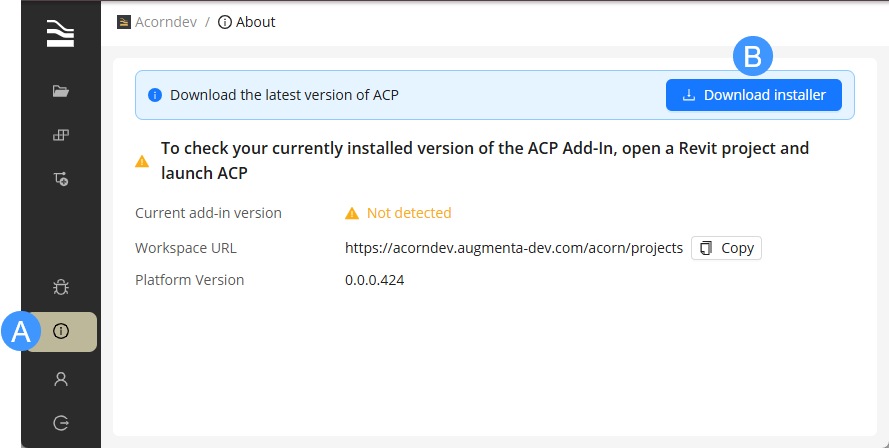
In the left sidebar of the ACP Workspace, click the
 About tab.
Click the
 Download button to get the installer.
Next Steps
Once you’ve downloaded the add-in installer, proceed to Installing the ACP Add-In.