In an Interactive Study, conduit solutions are generated following the created raceway routes which can be edited any time.
Editing raceway routes allows you to do the following:
Polish the routes before generating the conduit solution
Resolve issues, such as Clash Detection and Unknown Parts, in the generated solution by editing problematic routes before re-generating.
This article provides instructions on how you can move and delete waypoints and segments individually or simultaneously.
 Select Waypoints and Segments
Editing raceway routes begins with selecting waypoints or segments.
Once selected, you can:
Move and delete waypoints/segments individually or as a group
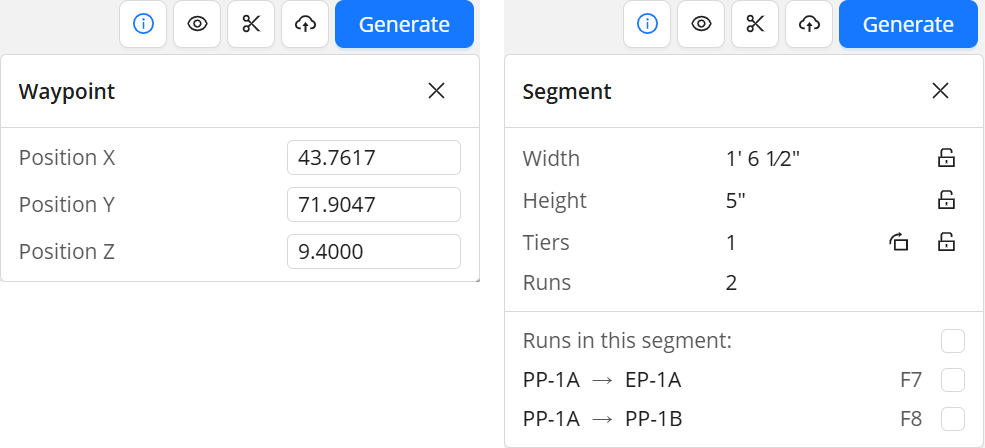
Use the Info
 panel to:
Inspect and adjust exact coordinates for a single waypoint
View assigned raceways and modify Rack Preview specifications of an individual Assigned Segment
 Individual select
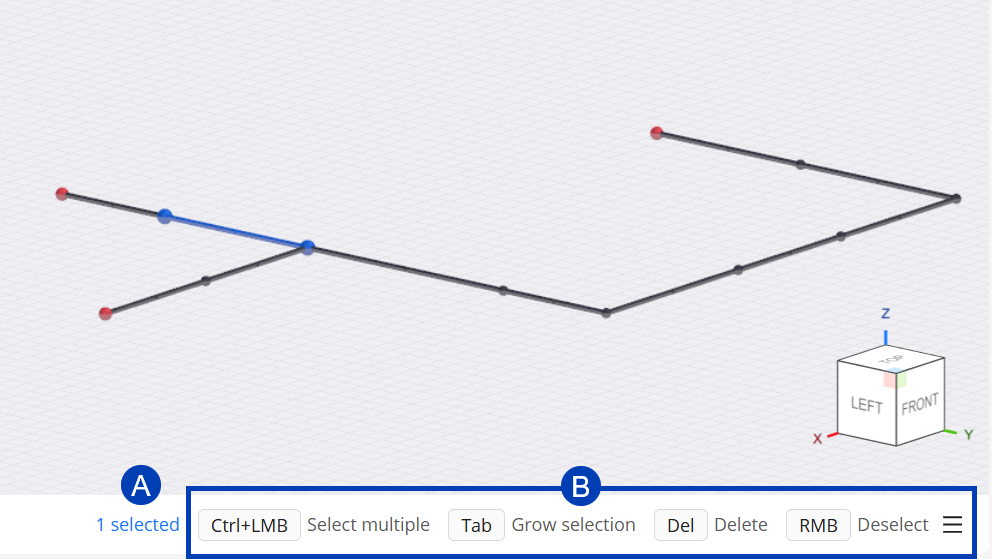
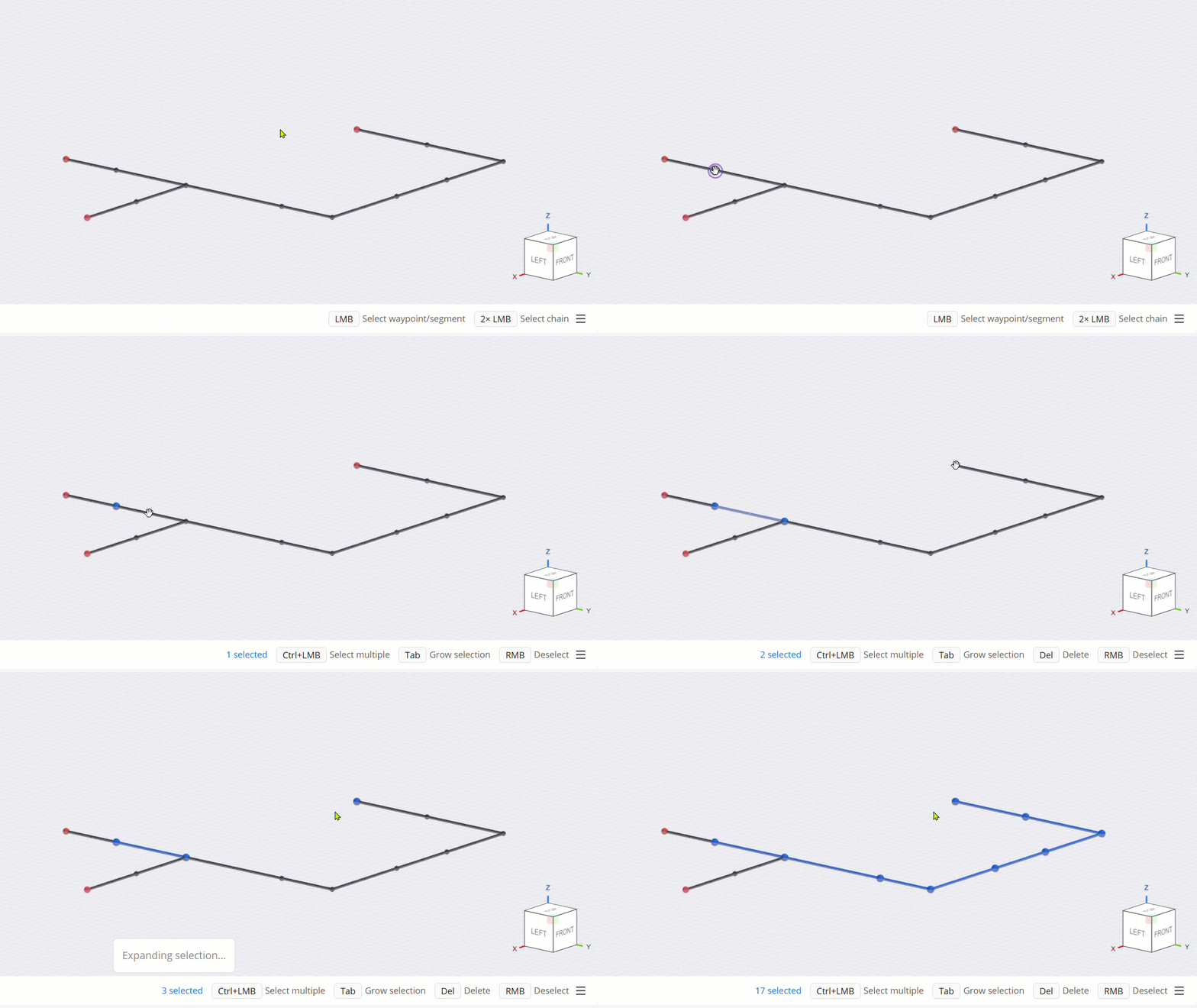
To select a waypoint or segment, hover over it then click the left mouse button (LMB) once it’s highlighted.
The status bar at the bottom will display your current  selection count, and the
  actions you can perform based on your selection.
Multi-select
Selecting multiple waypoints and segments at a time allows you to edit them simultaneously. There are multiple ways to do this in the Model Viewer.
Multi-select | How to | Animation |
|---|---|---|
Individually
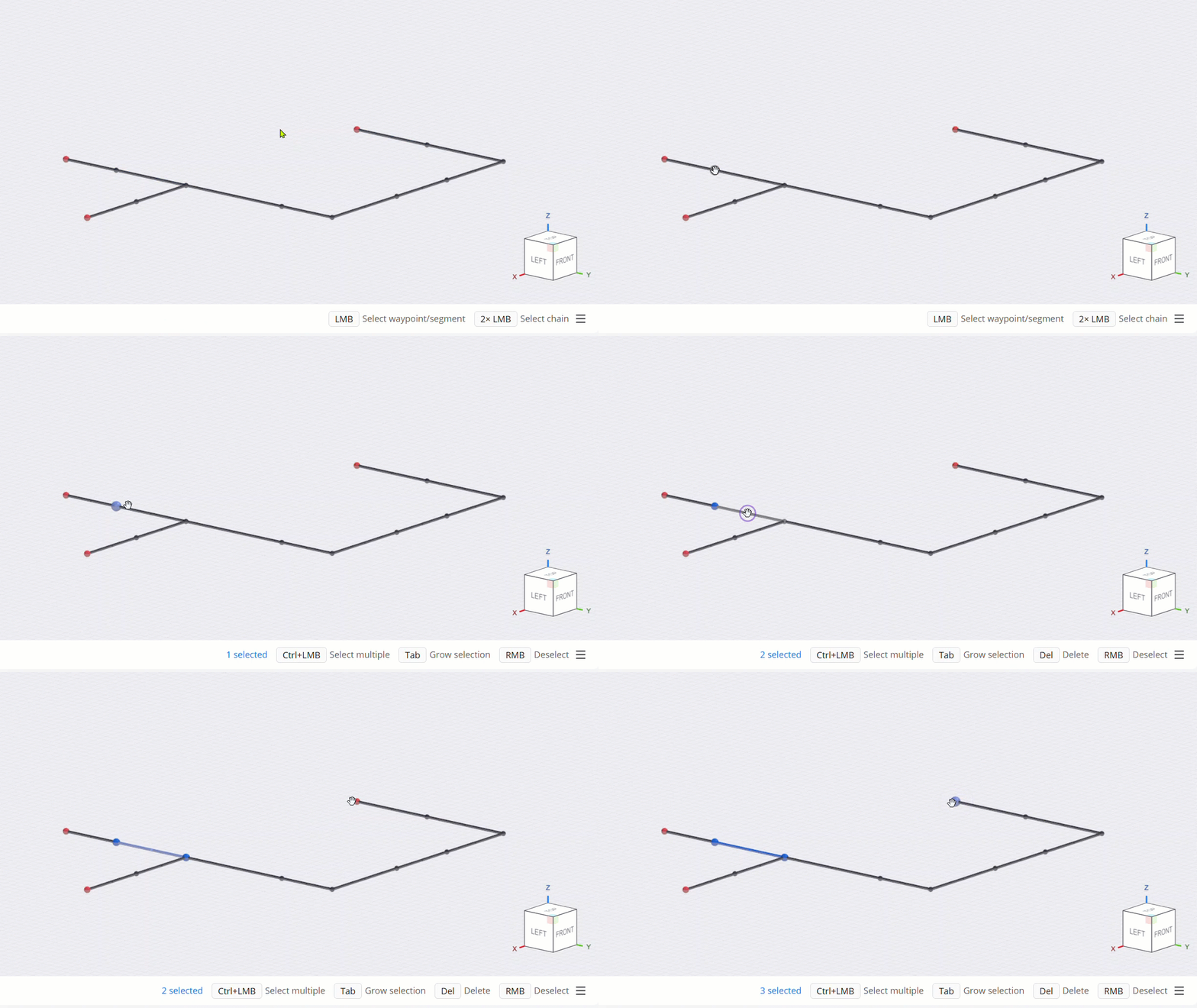
| To select multiple waypoints and segments individually, press and hold the Ctrl key as you select each one.
|
|
Inline
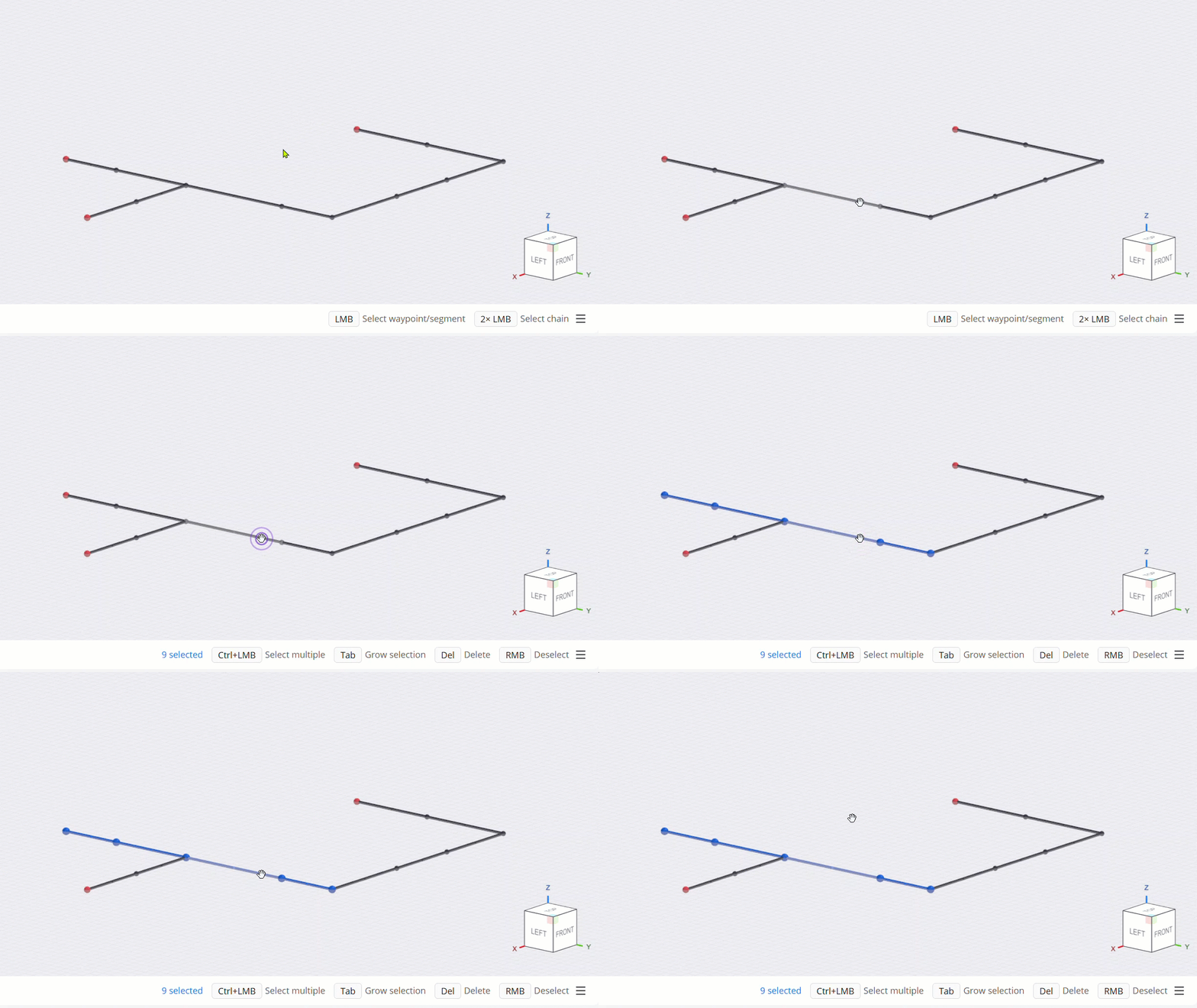
| To select all waypoints and segments in a straight line, double-click one of the segments along that line. |
|
Between two selections
|
|
|
Box select
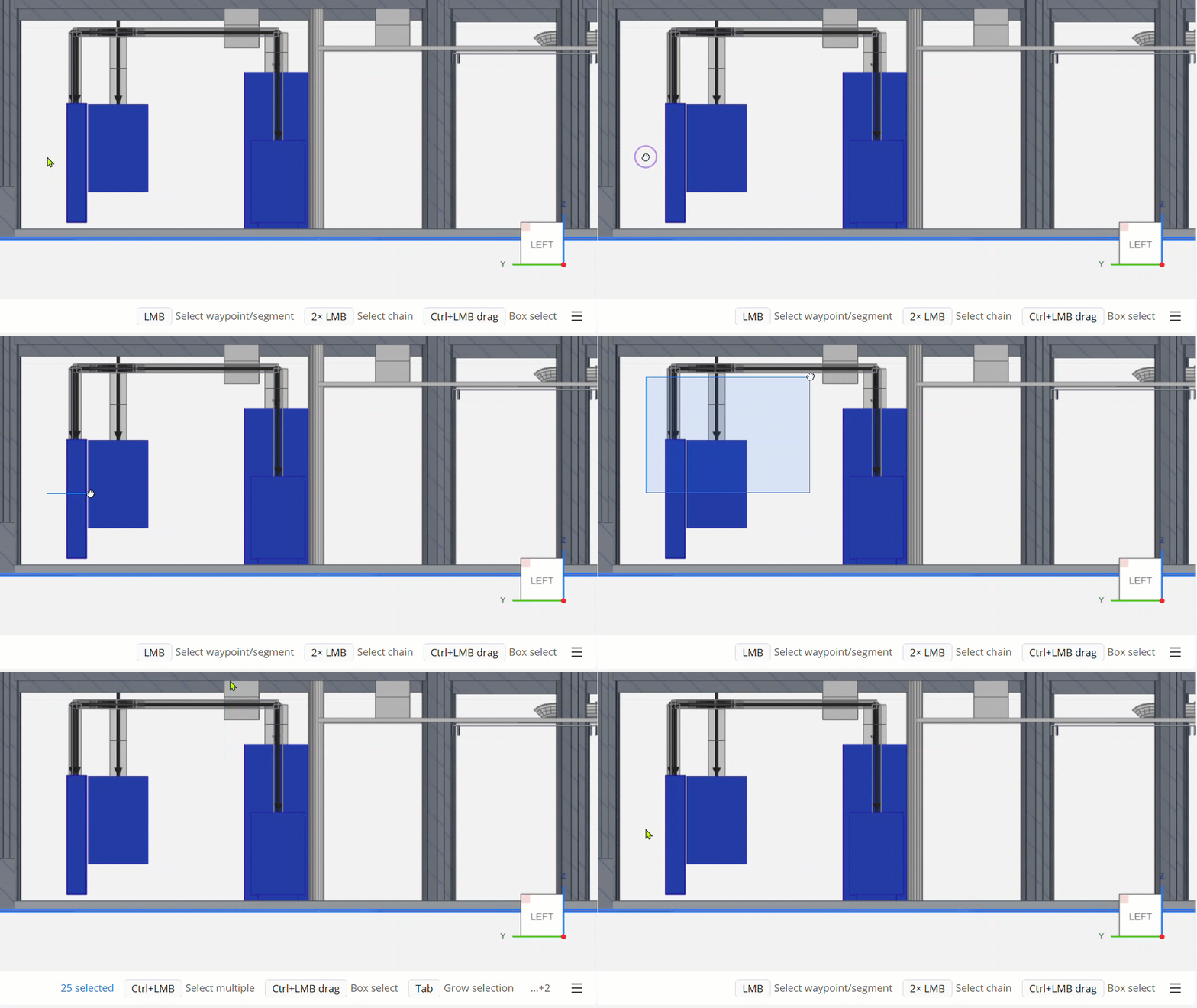
| To draw a box to select the fully encompassed visible waypoints and segments through the entire depth of the Site, press and hold the Ctrl key while dragging the LMB across the Model Viewer. |
|
Deselect
| To deselect the entire selection, click the right mouse button (RMB). | |




Edit Raceway Routes
Raceway routes connect a Source and Destination together with multiple segments which are connected by shared waypoints. Editing the routes includes moving or deleting those waypoints and segments.
Move Waypoints and Segments
Waypoints and Segments can be moved individually or as a group (multi-selection).
To move a single waypoint/segment:
Enter Move mode by clicking Move on the Mode Selector.
Or press M on your keyboard.
(Optional) Switch to the axis or plane you want to move in by pressing its corresponding shortcut key.
Refer to the Select the view and axis to draw in section for the shortcut keys.
Click and drag the waypoint/segment to the new location.
Because the segment’s two waypoints move along with it, other segments connected to those waypoints will follow.
Moving a single waypoint allows you to change the slope or angle of the segment.
.gif) Moving a waypoint |
Moving a segment |
|---|
.gif)
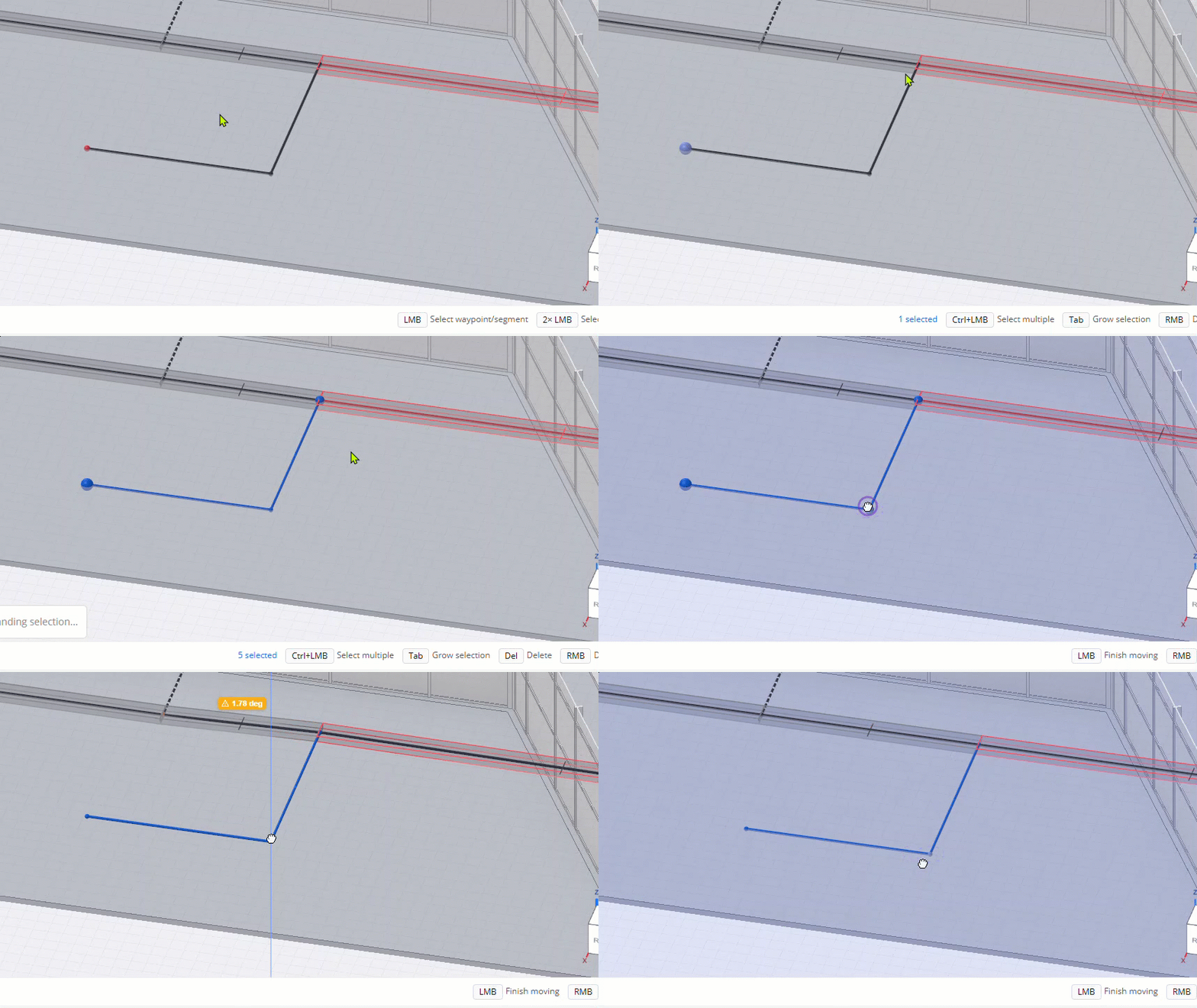
Select the waypoints and/or segments you’d like to move at once.
You may use any multi-select method.
Enter Move mode by clicking Move on the Mode Selector.
Or press M on your keyboard.
Click the base point for moving the selection.
The base point is the reference for switching between axes and planes.
(Optional) Switch to the axis or plane you want to move in by pressing its corresponding shortcut key.
Refer to the Select the view and axis to draw in section for the shortcut keys.
Drag to the target location then click.
To cancel the move, right-click on any location.
Delete Waypoints
To delete waypoints, follow the steps below:
Enter Select mode.
If you’re in either Draw or Move mode, press Esc on your keyboard.
Select the waypoint/s to delete.
Press and hold the Ctrl key to select multiple waypoints.
Press Del.
Once a waypoint is deleted, the segment/s connecting it to another waypoint adjusts depending on the waypoint’s position.
Open waypoints - at the end of a segment.
Deleting an open waypoint also deletes the segment connecting it to another waypoint.
.gif)
Connecting waypoints - shared by two or more segments.
Deleting a connecting waypoint merges the segments sharing the deleted waypoint.
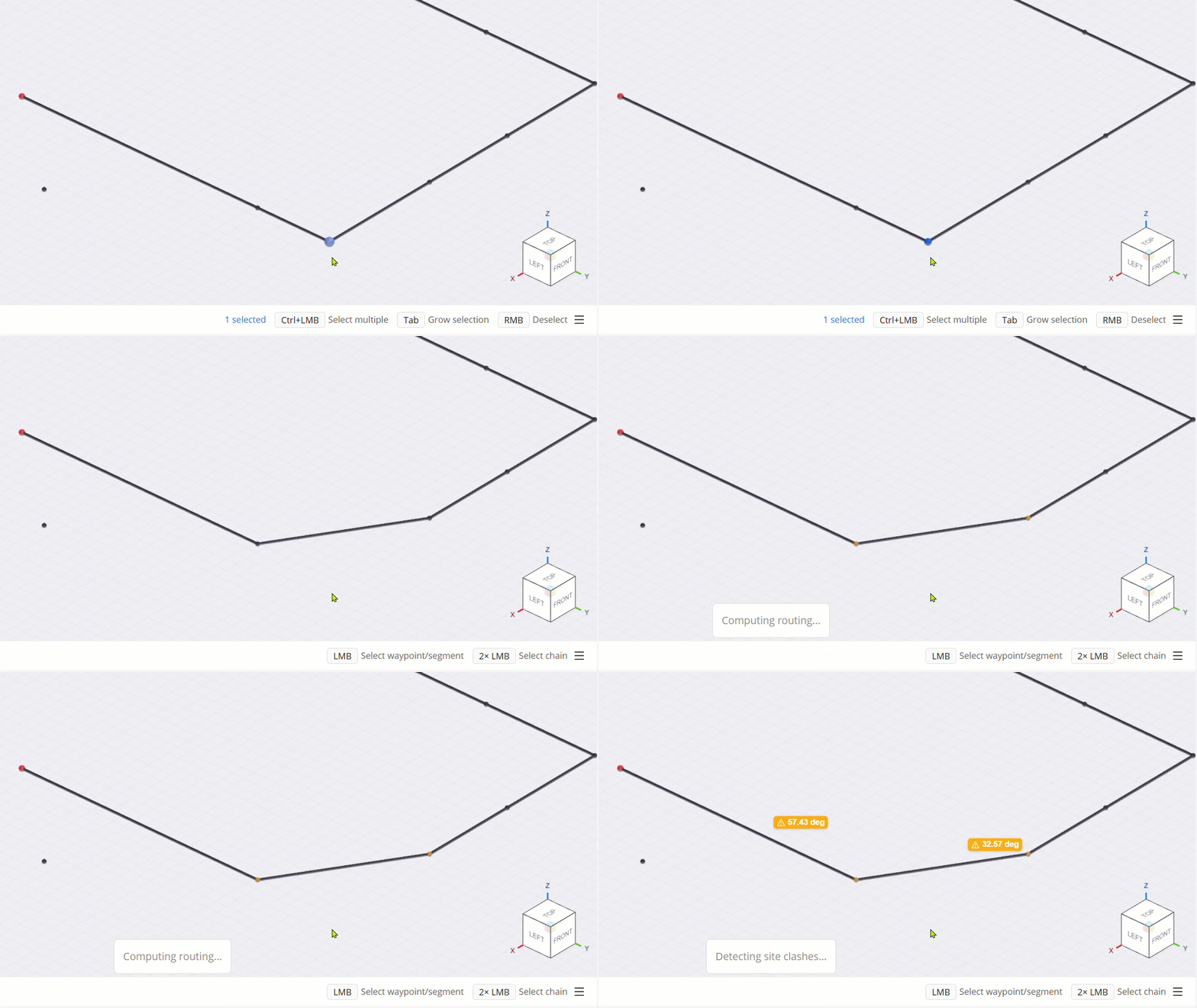
The two segments sharing the deleted corner waypoint are merged into a single angled segment.
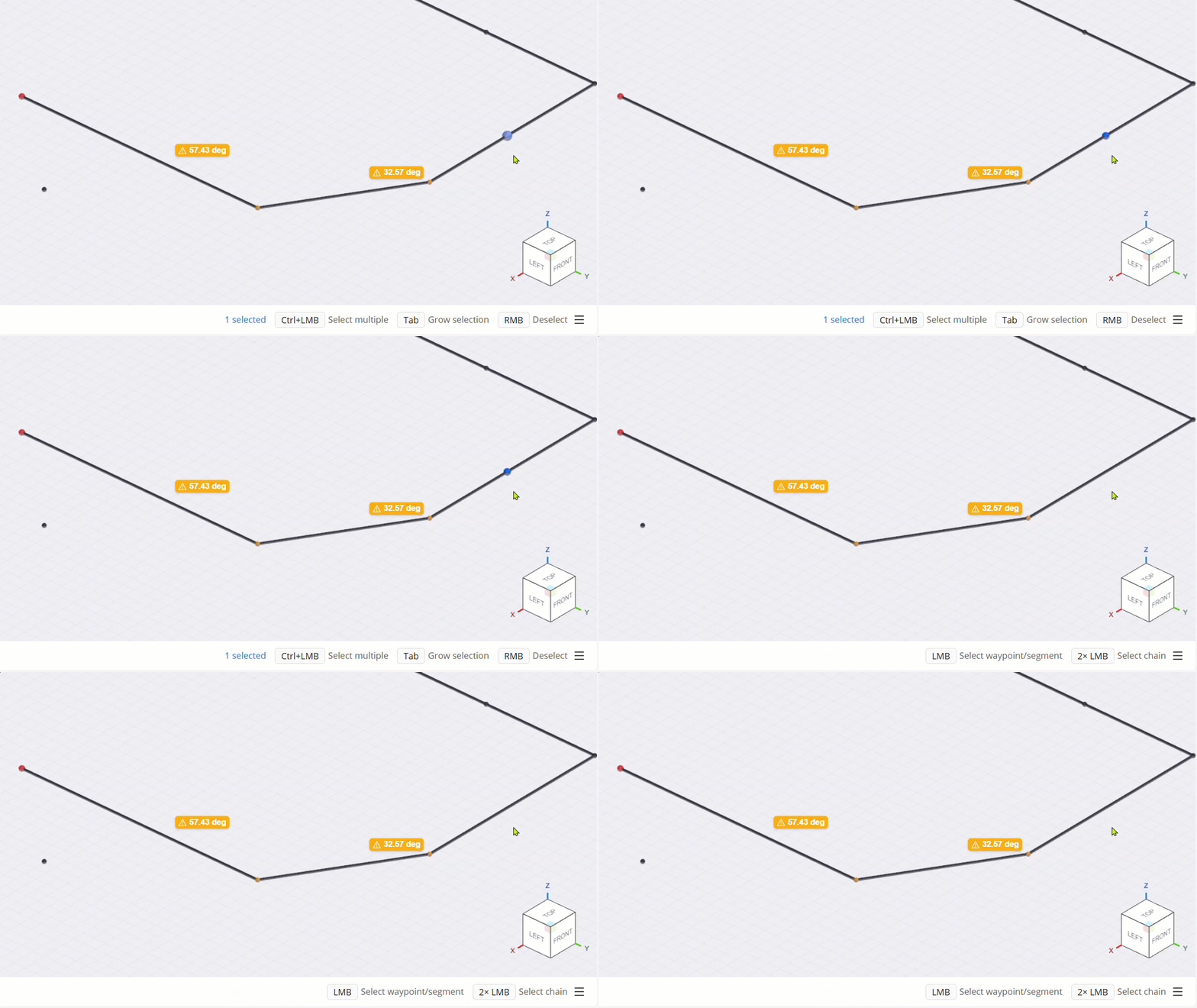
The two segments sharing the deleted waypoint are merged into a single straight segment.
Delete Segments
Any segment in the model may be deleted.
Enter Select mode.
If you’re in either Draw or Move mode, press Esc on your keyboard.
Select the waypoints and/or segments you’d like to delete.
You may use any multi-select method.
Press Del on your keyboard.
You can also simultaneously delete all unused or all segments.
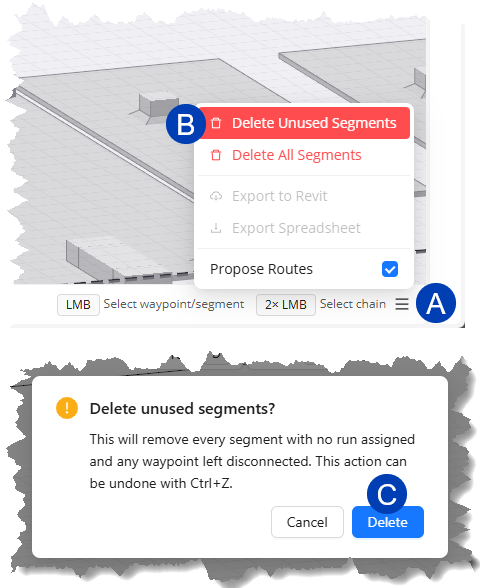 Unused segments don’t connect a raceway’s Source and Destination, and may get in the way while you’re drawing or navigating through the site.
To easily clean up the view, simultaneously delete all Unused Segments, and their routes by following the steps below.
Click the
 menu icon at the bottom right corner.
Click the
 Delete Unused Segments option.
 In the pop-up dialog box, click the
 Delete button.
This action may be undone by pressing Ctrl + Z on your keyboard.
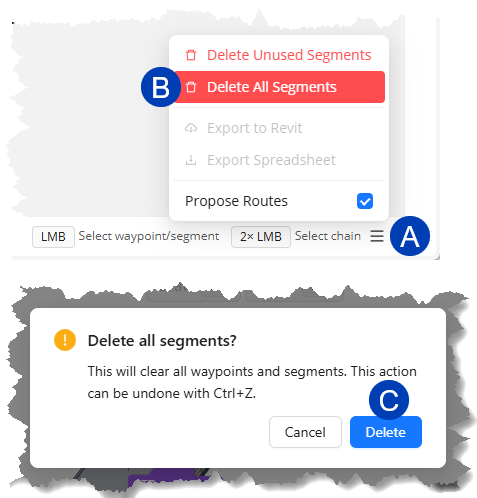 There may be instances when you need to restart drawing in an existing study, such as when duplicating a study to explore different raceway routes.
To easily delete all segments in a study, follow the steps below:
Click the
menu icon at the bottom right corner.Click the
Delete All Segments option.In the pop-up dialog box, click the
Delete button.This action may be undone by pressing Ctrl + Z on your keyboard.
This will clear all of the segments from the study.
Once you start drawing again, the deleted segments can no longer be brought back.
Next Steps
Once the raceway’s Source and Destination connects with each other, Clashes are detected and may be resolved in the route.