Generate conduit routes
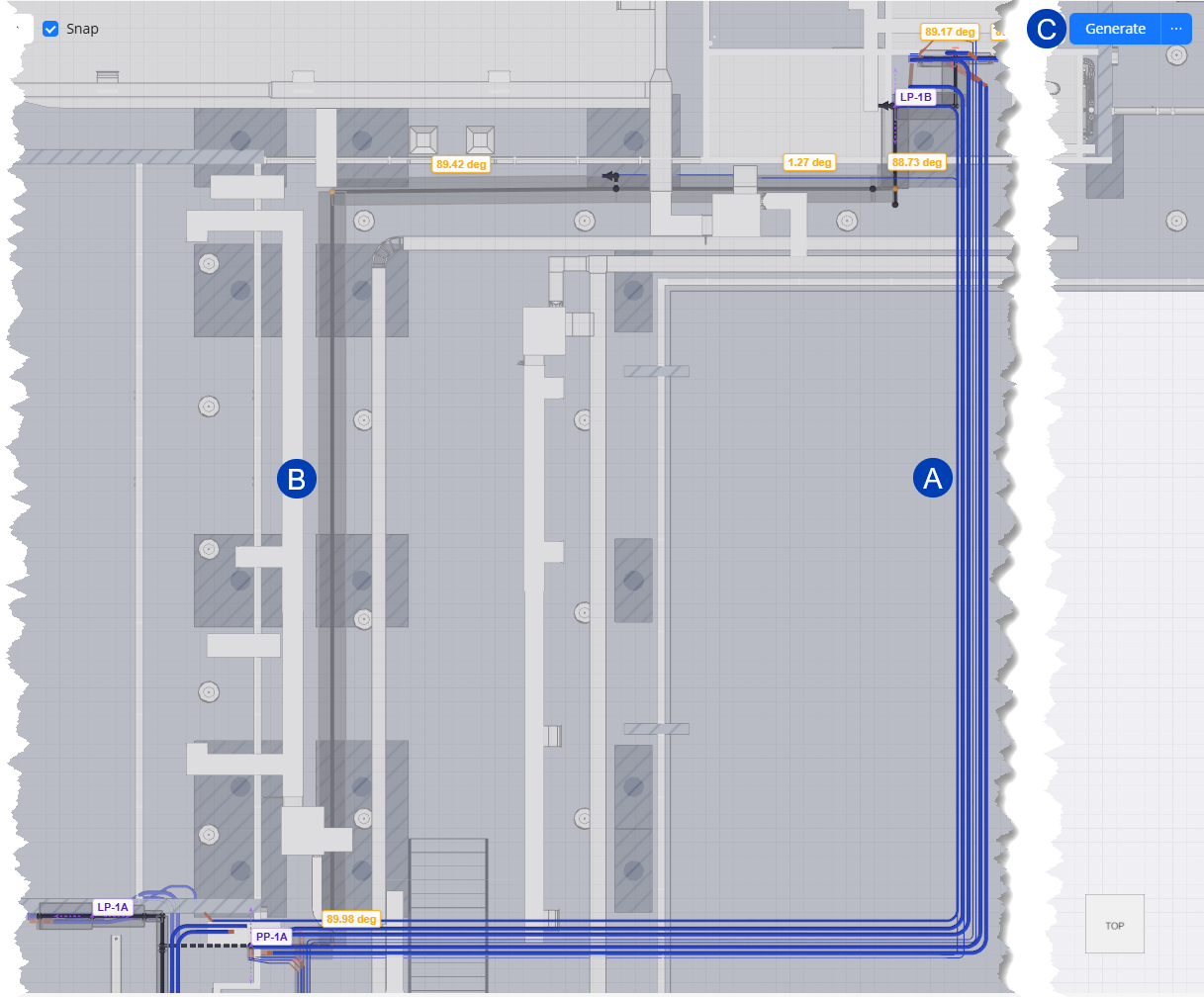 In Interactive Routing, ACP generates a conduit route for each raceway with a Routed status in the Conduit Schedule when you click the Generate button. The generated conduits follow the route of the Assigned Segments for the raceway, and are detailed according to the specifications referenced by the raceway’s Feeder ID from the Feeder Schedule.
Because conduit is generated only for fully Routed raceways, you can generate conduit multiple times while drawing routes to check final paths, Rack location, bend orientation, final clash status, and other preferences.
Modify generated conduit routes
The Assigned Segments used to generate  conduit routes may be modified at any time. Because the conduit generation is not live, conduits do not adjust their location until you click Generate again. When you do, the previously generated conduit routes for the raceway will be removed and the new routes will follow the newly drawn segments.
Follow the steps below.
Delete the Assigned Segment(s) for the conduit route you’d like to modify.
 Draw new segments for the new route you’d like for the conduit.
Ensure that the segment(s) you draw are fully connected and assigned a Rack Preview, indicating that it connects a Source and Destination.
Repeat for all the raceways you’d like to modify the generated routes for.
Select the
 Generate button to generate new conduit routes for the raceways.
The generated conduit route will follow the newly drawn segments.
PRO TIP: For a cleaner view while redrawing segments, use the View Controls to Hide
the Solutions category group.
Export to Revit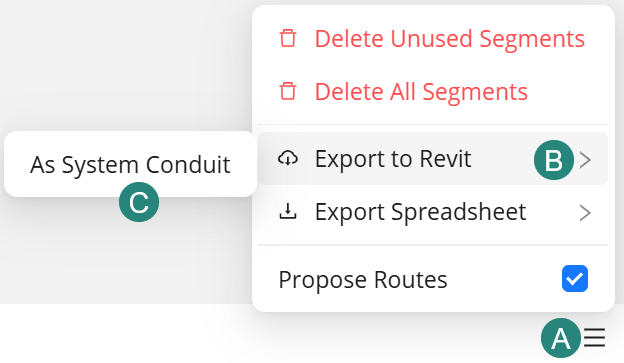
To export the solution into your Revit project, follow the steps below.
Click the
 Menu button at the bottom of the
 From the dropdown options, select
 Export to Revit.
Select
 As System Conduit.