View filters in Revit make it easy to highlight, hide, or apply custom graphics to specific elements within a view based on their properties. This helps you quickly identify elements that meet specific criteria.
The Inspect Solutions tool creates and applies temporary view filters to the active view to highlight ACP-specific parameters, as well as built-in and custom-created parameters. This tool also reviews conduit for self collisions and highlight them in the model.
As the view filters from the Inspect Solutions tool are temporary, you can easily clear them from view. However, if preferred, you can also permanently apply the view filters to the view.
This section covers the step-by-step instructions on how to use the Inspect Solutions tool.
Working with temporary filters
.png) Select Filters and Overrides
Select Filters and Overrides
Open the Inspect Solutions tool
 from the Edit panel in the Augmenta tab.
 Click the
 Color By dropdown.
From the dropdown, select an Inspections or ACP parameters option.
Selecting an
 Inspections option reviews and sets parameters for the exported solution, then creates and applies a view filter to the active view to highlight the solution based on those settings.
For more information on the Self Collisions option, refer to the Self Collision Detection section.
When you select any
 parameter from the list, the Inspect Solutions tool generates corresponding filters and view overrides based on the selected parameter.
The parameters appear in the dropdown when:
They are either Text or Yes/No parameter types.
And there is at least one element in the view which contains a property for that parameter.
The Inspect Solutions tool creates a view filter rule and color override for each unique property found in the selected parameter, across elements visible in the view. Each property is then listed in the Solution Inspection panel with its assigned color and a count of the elements it contains.
The parameters in the list are organized with the ACP parameters at the top, followed by all other text parameters, with the Family Name and Type Name information at the bottom of the list.
The ACP properties are specified in the ACP Conduit Schedule and populated to all elements within the ACP generated conduit solution when exported from ACP to Revit.
These same parameters are shown within the ACP Conduit Run Schedule.
tool refers to the ACP_C_Study_Information parameter to group elements from each solution.
When clicked, the Select Generated Elements tool opens the ACP Inspect Solutions panel with the Color By drop down list set to filter by the ACP_C_Study_Information property. This allows you to visually distinguish each solution, as well as select or isolate each one separately.
.png) Modify the Filter Overrides
Modify the Filter Overrides
A unique color override is initially assigned to each view filter. To standardize the colors used, you can designate a standard palette, change the assigned color of a specific filter, or randomize colors.
Use Standard Palette
Using the Standard Palette allows you to select the 7 initial color overrides for the view filters. If there are more than 7 filter results, the colors will repeat.
To configure and use the standard palette:
Click the
 Standard Palette button.
This changes the colors assigned to the filter results into the standard palette colors.
To change the standard palette colors, click the
 dropdown button beside the Standard Palette button.
Designate a standard palette color to each one.
Manually change assigned color
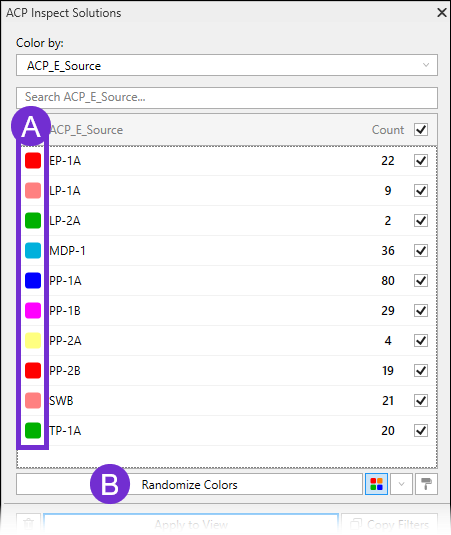 The colors initially assigned to the view filters when they’re created, or when the standard palette is applied, may be overridden in the ACP Inspect Solutions panel. This allows you to easily distinguish each view filter in the view, especially when the standard palette colors repeat when there are more than 7 view filters created.
To change the color override, click the
 color swatch next to the property.
In the pop-up Color window, select a new color.
Randomize Colors
Clicking the  Randomize Colors button when the standard palette is not in use will re-assign new color overrides to the view filters.
If the standard palette is used, the 7 palette colors will only change in order whenever you click the Randomize Colors button.
Any manually assigned color will be changed into one of the palette colors.
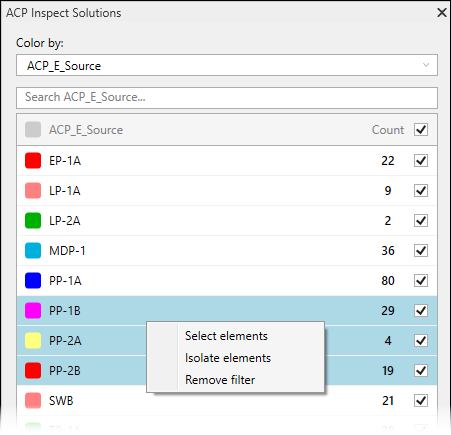 Select, isolate, or remove filter results
The Inspect Solutions tool also allows you to easily select or temporarily isolate the filter results, allowing you to manage those elements simultaneously or reduce visual clutter during the review.
Follow the steps below:
Select one or more filters in the ACP Solution Inspection panel.
Right-click on the row(s).
Choose one of the following options:
Select elements - Selects all elements the rule applies to.
Isolate elements - Turns on the temporary isolate all elements the rule applies to.
Remove filter - Removes the filter from the panel and the project.
Apply temporary filters
Although the view filters created by the Inspect Solutions tool are designed to be temporary, you can make them permanent so the solution remains visible after you close the ACP Solution Inspection panel.
.png) To permanently apply the view filters to a view or a view template:
To permanently apply the view filters to a view or a view template:
Select the
 Apply to View / Apply to View Template button at the bottom of the ACP Solution Inspection panel.
 This will write the current rules to the following:
Global View Filter list
Visibility/Graphic Overrides for the view
Filters of the view template
When applying the view filter to a view template, the View Template applied dialog box will appear.
In the dialog box, click the
 Apply button.
Applying the view filter to the view template updates any view where it is used.
Because the solution is exported into the ACP - Export workset, which isn’t shown in all views, the filters may not affect the views where the view template is applied.
Apply to View
The Apply to View button in the ACP Inspect Solutions panel creates the view filters in your Revit project and applies them directly to the active view. No other view is affected. The view filters can be applied to other views using the Inspect Solutions tool either by using Apply to View Template or Copy filters.
Apply to View Template
When a view template is applied to the active view, the Apply to View button changes into the Apply to View Template button which applies the view filters created in the ACP Inspect Solutions panel to both the view and the view template. Any view using that view template will inherit the same view filters.
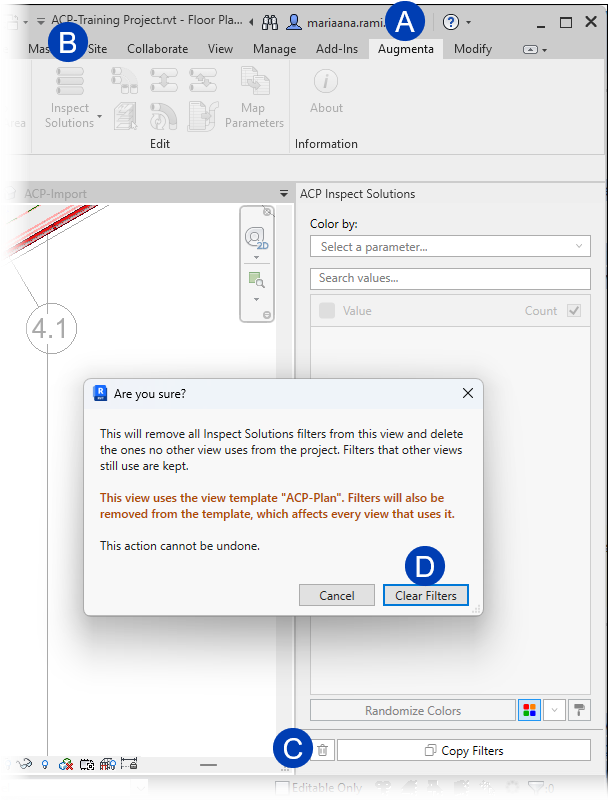 Clear all ACP filters from the Revit Project
The Inspect Solutions tool creates view filters in every view, and any view template applied to it, where you click the Apply to View / Apply to View Template button. This can lead to many filter rules being added to the project.
The Clear all ACP Filters button removes all filters created using the Inspect Solutions tool from the view and its view template. If the filter is not used anywhere else in the project, they are deleted from the Global View Filters in the Revit project. Otherwise, the filters are removed from the active view but retained in other views/view templates.
Open the view where the filters you want to delete have been applied.
Navigate to the
 Augmenta tab.
Click the the
 Inspect Solutions tool in the Edit panel.
This opens the ACP Inspect Solutions panel.
Click the
 Clear all ACP Filters button at the bottom of the panel.
 The Are you sure? dialog box will appear.
Click the
 Clear Filters button to proceed.
Or select Cancel to close the window without removing the filters.
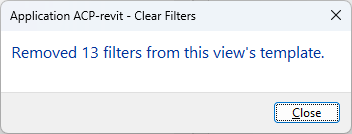 Once complete, the Clear Filters pop-up will appear, indicating the number of filters removed from the view/view template.
Copy filters
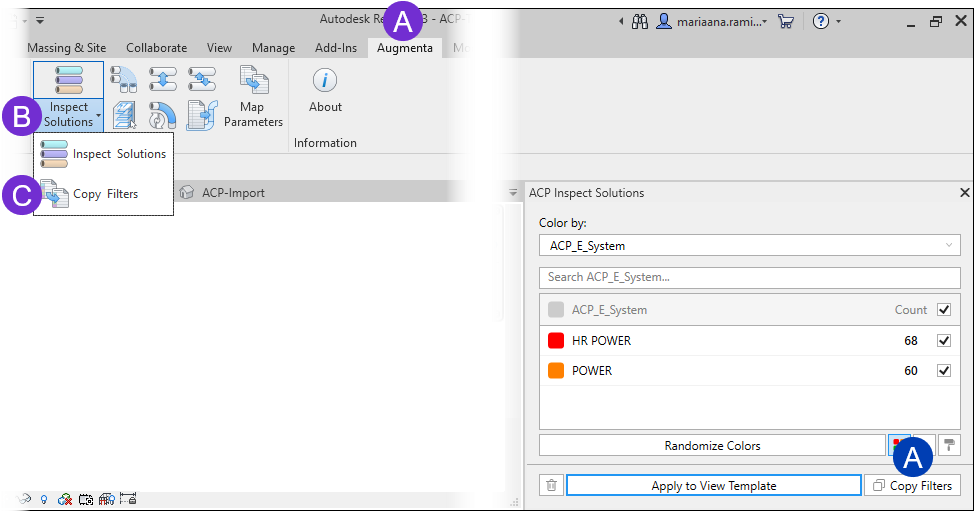 The Inspect Solutions tool also allows you to copy view filters between views and view templates. All view filters can be copied, whether they’re manually created, ACP-generated during project initialization, or created using the Inspect Solutions tool. This makes it easier to review solutions across different views without needing to recreate the same filter multiple times.
Follow the steps below.
In the Inspect Solutions pane, click the
 Copy Filters button.
Or navigate to the
 Augmenta tab in the toolbar, then select
  Copy Filters from the
  Inspect Solutions dropdown.
This opens the Copy Filters window.
.png)
(Optional) In the Copy Filters window, click the
 Source view dropdown then select from the options.
By default, the Source view is the active view when the Copy Filters window is launched.
In the
 Filter column on the left, deselect the checkbox for filters which shouldn’t be copied.
All filters added to the Source view are selected by default.
In the
 Target column on the right, select the checkbox for the views and/or view filters where the selected filters should be copied.
This column is organized in a category tree with Views and View Templates at the top of the hierarchy.
Click the expand
.png) and collapse
and collapse .png) buttons to view or hide each level in the category tree.
buttons to view or hide each level in the category tree.Use the
 Search bar to find a specific view or view template by name.
(Optional) If the filter overrides in the Source view shouldn’t be copied, deselect the
 Copy filter settings checkbox.
This checkbox is selected by default.
Click the
 Apply button.
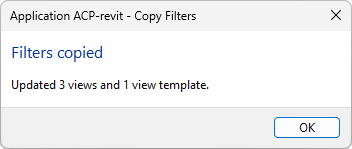 Once the filters are copied, ACP displays a message box summarizing the number of views and view templates where the filters are copied to.
Self Collision Detection
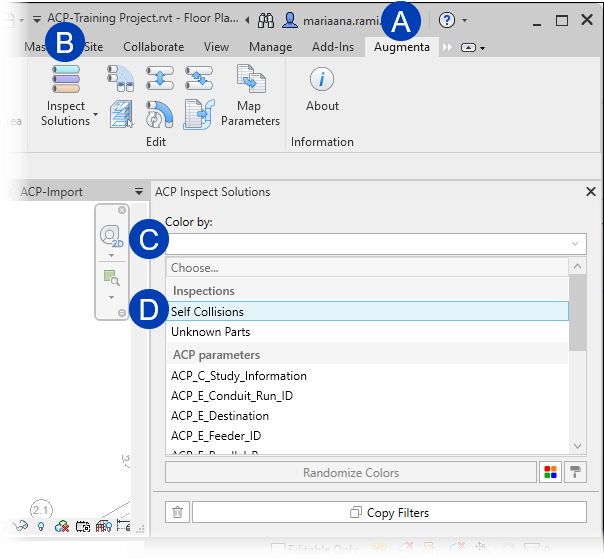 The Self Collisions option of the Inspect Solutions tool helps you find conduit that clashes with other conduit within the Revit model. When run, it reviews all conduit in the Revit project (whether or not it was generated by ACP) and flags any conduit element involved in a collision.
Follow the steps below to run the Inspect Solutions tool for self collision detection.
Navigate to the
 Augmenta tab.
Select the
 Inspect Solutions tool in the Edit pane.
In the ACP Inspect Solutions panel, click the
 Color by dropdown.
From the options, select
 Self Collisions.
This runs the collision detection process, setting the ACP_E_Self_Collision parameter to YES on any conduit element involved in a collision.
It also creates the View Filters for easy visual identification of those clashes (See below).
View Filters
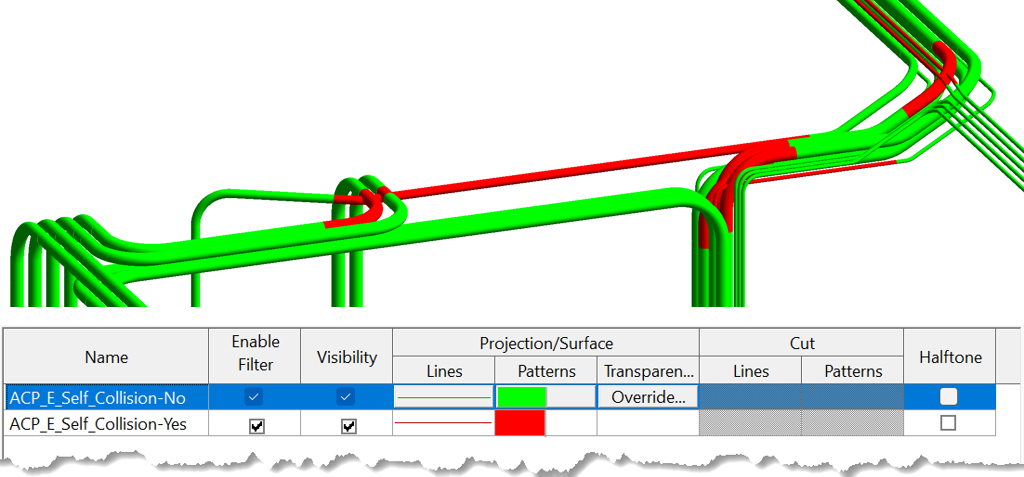 When the Inspect Solutions tool is run for Self Collisions, two color filters are added and applied to the active view.
ACP_E_Self_Collision - No: Highlights in green Conduit Segments or Conduit Fittings not involved in a self-collision
ACP_E_Self_Collision parameter is set to NO
ACP_E_Self_Collision - Yes: Highlights in red Conduit Segments or Conduit Fittings involved in a self-collision
ACP_E_Self_Collision parameter is set to YES

PRO TIP:
Self Collisions is best run on a dedicated 3D view to prevent graphic override conflicts.
If other view filters, such as
, for Conduits and/or Conduit Fittings were previously applied to the active view, their
Enable Filter and
Visibility properties will be unchecked when Self Collisions is run.
To re-enable these properties for ACP-generated view filters, rerun the ACP Inspect Solutions tool and select the Color by option which initially generated them.
Any manually created view filters affected by the tool must be re-enabled manually.
.png) Inspecting Conduit Updates
Inspecting Conduit Updates
The ACP_E_Self_Collision parameter retains its value (YES/NO) from the last time the Inspect Solutions tool was run for Self Collision detection. When conduit is added or adjusted, re-run the tool to update the parameter.
If the ACP Inspect Solutions tool is still open: click the
 Refresh button next to the Color by dropdown when Self Collisions is selected.
If the tool has been closed (manually, or by applying the filter to the view): re-open the ACP Inspect Solutions tool and select Self Collisions from the Color by dropdown list.
The ACP_E_Self_Collision parameter may be added to any conduit schedule for easier tracking.
 Review Placeholder Bends
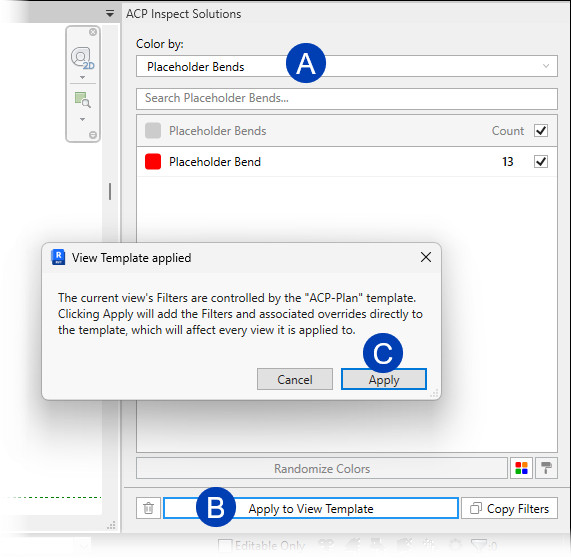
Any Placeholder Bends in the solution generated in your ACP study are exported into your Revit project as Generic Models. To help in replacing Placeholder Bends, the Inspect Solutions tool finds, selects, and puts them into a selection filter. A view filter also highlights the Placeholder Bends in red.
Follow the steps below.
In the ACP Inspect Solutions panel, click the
 Color by dropdown, then select Placeholder Bends in the options.
(Optional) Modify the filter overrides as preferred.
Click the
 Apply to View / Apply to View Template at the bottom.
When applying to the view, the filter is applied immediately.
When applying to a view template, the View Template applied dialog box appears.
Click the
 Apply button to confirm the application of the filter to the view template.