View filters in Revit make it easy to highlight, hide, or apply custom graphics to specific elements within a view based on their properties. This helps you quickly identify elements that meet specific criteria.
The Inspect Solutions tool creates and applies temporary view filters to the active view to highlight ACP-specific parameters, as well as built-in and custom-created parameters. This tool also reviews conduit for self collisions and highlight them in the model.
As the view filters from the Inspect Solutions tool are temporary, you can easily clear them from view. However, if preferred, you can also permanently apply the view filters to the view.
This section covers the step-by-step instructions on how to use the Inspect Solutions tool.
 Choose the Filter Settings
Create Filters and Overrides
Open the Inspect Solutions tool
 from the Edit panel in the Augmenta tab.
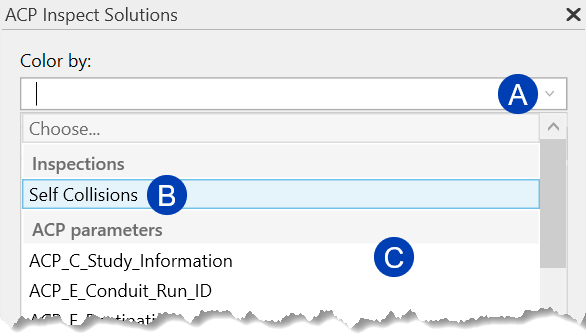
 Click the
 Color By dropdown.
From the dropdown, select how you want to highlight conduit in the model:
 Self Collisions or
  specific parameters.
 The Inspect Solutions tool will automatically generate filters and view overrides based on the selected option.
The parameters listed in the dropdown:
Have at least one element which contains a property.
Are a Text parameter type.
The Inspect Solutions tool creates a view filter rule and color override for each unique property found in the selected parameter, across elements visible in the view. Each property is then listed in the Solution Inspection panel with its assigned color and a count of the elements it contains.
Refer to the Self Collision Detection section for more information on how the Inspect Solutions tool works to detect and highlight self collisions.
The ACP parameters are specified in the ACP Conduit Schedule and populated to all elements within the ACP generated conduit solution when exported from ACP to Revit.
This includes the Study/Solution information from each specific ACP solution exported.
These same parameters are shown within the ACP Conduit Run Schedule.
Modify the Filter Overrides
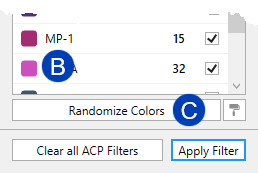 To change the assigned color, click the
  color swatch next to the property and select a new color from the Revit color palette.
Or click the
 Randomize Colors button at the bottom of the panel to assign new colors for each property.
With the ACP Solution Inspection panel open, review the various solutions in the view.
Use the visibility controls within the ACP Solution Inspection panel to adjust what appears in the view.
You can also use the Visibility/Graphic Overrides for the filters in the view.
To use this method effectively, any view template applied should be removed, or the Temporary View Properties
 should be enabled.

PRO TIP:
To select or isolate all of the elements filtered within a specific rule
Click the desired data in the ACP Solution Inspection panel.
Right-click the same row.
Choose one of the following options:
Select elements to select all conduit runs the rule applies to.
Isolate elements to isolate all conduit runs the rule applies to.
Apply temporary filters to the active view
Although the view filters created by the Inspect Solutions tool are designed to be temporary, you can make them permanent so the solution remains visible after you close the ACP Solution Inspection panel.
 To permanently apply the view filters to a view:
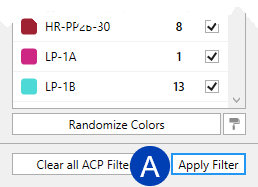
Select the
 Apply Filter button at the bottom of the ACP Solution Inspection panel.
 This will write the current rule to the Global View Filter list, as well as apply the overrides from the ACP Solution Inspection panel to the view.
Where are the View Filters applied?
View Filters created by the ACP Inspect Solutions tool and their overrides are applied directly to the active view, unless a View Template is assigned to that view.
If a View Template is assigned, the filters and overrides are applied to the template instead.
Any view using that template will inherit the same filters.
If the same filter rule (created by the Inspect Solutions tool) is applied to different views (not as a shared View Template), duplicate Global View Filters will be created for each view.
Because View Filter overrides are view-dependent, you must apply the View Filter Rules separately (along with their overrides) to each view where you want to visually distinguish exported solutions.
Applying multiple view filters to the same view may cause visibility conflicts as these are applied based on their hierarchy in Visibility/Graphic Overrides. To avoid this, create separate views for each use of the Inspect Solutions tool permanently applied to the view, or each time you use a tool that creates and applies view filters such as the Convert Bends tool.

Clear all ACP Filters from the Revit Project
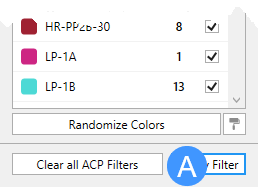 The Inspect Solutions tool creates view filters in every view where you click the Apply Filter button, which can lead to many filter rules being added to the project. The Clear all ACP Filters button removes the filter overrides from the view and deletes the corresponding filter rules from the Global View Filters in the Revit project.
Navigate to the view where the filter rules you want to delete have been applied.
Open the ACP Solution Inspection panel by clicking the Inspect Solutions tool
in the Edit panel of the Augmenta tab. 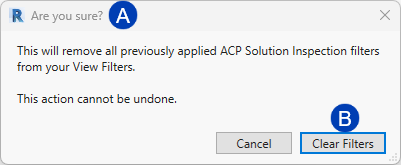 Click the
  Clear all ACP Filters button at the bottom of the panel.
 The
 Are you sure? dialog box will appear.
Click
 Clear Filters to remove the View Filter Rules applied to the Active View from the project, which also removes the overrides applied in the view.
 Or select Cancel to close the window without removing the filters.
Because Clear all ACP Filters removes the View Filter Rules from the Global View Filters in the Revit project, any filters removed from the active view will also be removed from any other views they are applied to.
Self Collision Detection
 The Self Collisions option of the Inspect Solutions tool helps you find conduit that clashes with other conduit within the Revit model. When run, it reviews all conduit in the Revit project (whether or not it was generated by ACP) and flags any conduit element involved in a collision.
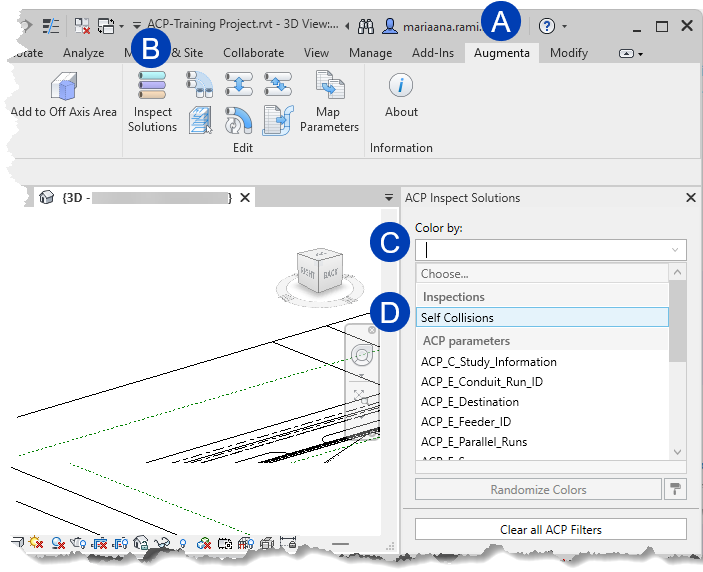
Follow the steps below to run the Inspect Solutions tool for self collision detection.
Navigate to the
 Augmenta tab.
Select the
 Inspect Solutions tool in the Edit pane.
In the ACP Inspect Solutions panel, click the
 Color by dropdown.
From the options, select
 Self Collisions.
This runs the collision detection process, setting the ACP_E_Self_Collision parameter to YES on any conduit element involved in a collision.
It also creates the View Filters for easy visual identification of those clashes (See below).
View Filters
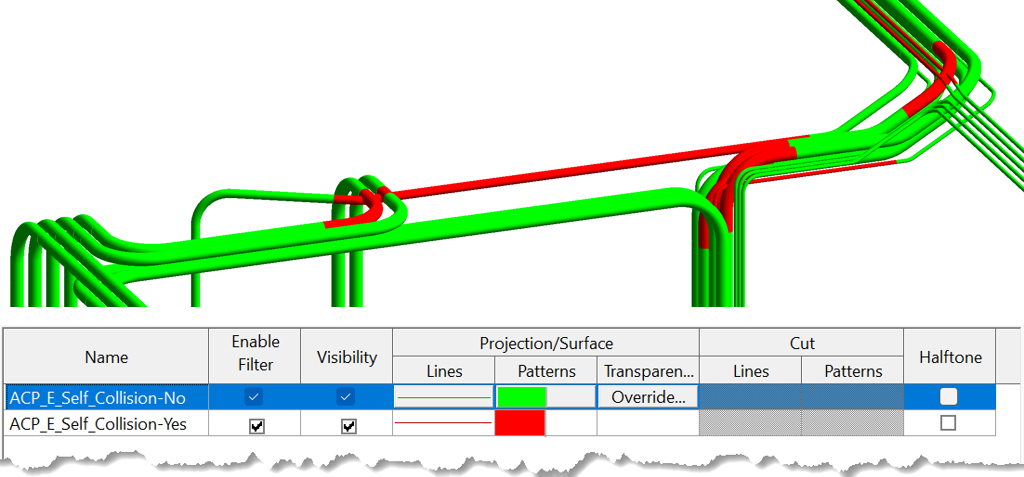 When the Inspect Solutions tool is run for Self Collisions, two color filters are added and applied to the active view.
ACP_E_Self_Collision-No: Highlights in green Conduit Segments or Conduit Fittings not involved in a self-collision
ACP_E_Self_Collision parameter is set to NO
ACP_E_Self_Collision-Yes: Highlights in red Conduit Segments or Conduit Fittings involved in a self-collision
ACP_E_Self_Collision parameter is set to YES
PRO TIP:
Self Collisions is best run on a dedicated 3D view to prevent graphic override conflicts.
If other view filters, such as
, for Conduits and/or Conduit Fittings were previously applied to the active view, their
Enable Filter and
Visibility properties will be unchecked when Self Collisions is run.
To re-enable these properties for ACP-generated view filters, rerun the ACP Inspect Solutions tool and select the Color by option which initially generated them.
Any manually created view filters affected by the tool must be re-enabled manually.
.png) Inspecting Conduit Updates
Inspecting Conduit Updates
The ACP_E_Self_Collision parameter retains its value (YES/NO) from the last time the Inspect Solutions tool was run for Self Collision detection. When conduit is added or adjusted, re-run the tool to update the parameter.
If the ACP Inspect Solutions tool is still open: click the
 Refresh button next to the Color by dropdown when Self Collisions is selected.
If the tool has been closed (manually, or by applying the filter to the view): re-open the ACP Inspect Solutions tool and select Self Collisions from the Color by dropdown list.
The ACP_E_Self_Collision parameter may be added to any conduit schedule for easier tracking.