The Project view in the ACP Workspace provides an organized and structured display of all studies within a selected project. This is where users can create studies, generate solutions, and export solutions to the Revit project.
Open an ACP project
.png) To open an ACP project:
Navigate to the
 Projects tab.
In the Project list, click on a
 Project name.
Or click the
 Open button under the Actions column.
Study list
The Studies table displays all studies within the project. It also provides operational information about the studies as well as various management options.
Filters and controls
These controls allow users to determine what gets displayed in the Studies table and the display size.
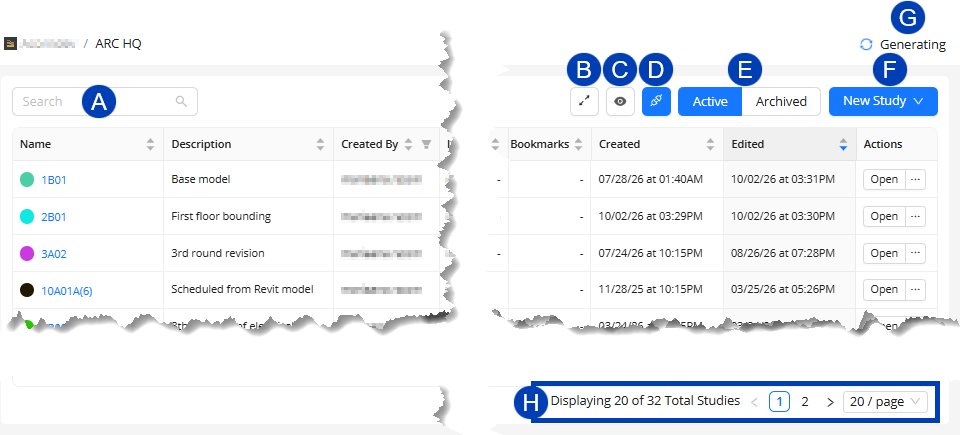
 Search: Provides filtering capabilities to quickly locate a Study with details matching the entered text.
 Density toggle: Allows switching between Medium and Compact size of the Projects table.
 Columns Visibility filter: A dropdown menu that enables users to choose which columns of the table are visible.
 Revit project link - Links the current ACP project with the open Revit project.
When linked, launching ACP from the Revit add-in automatically opens to the current ACP project.
 Active/Archived toggle:
Active: Displays all active studies.
Archived: Shows archived studies which aren’t currently in use.
 New Study button: Allows users to create a new study within the selected project.
New Automatic Study: Creates a new study with the Automatic routing options and workflows.
New Interactive Study: Crates a new study with the Interactive routing tools and workflows.
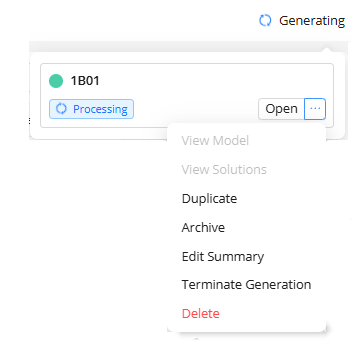
 Generating status - While generating solutions, this will be displayed on the upper right corner of the Project view.
Clicking this status opens a dropdown listing all studies currently generating solutions with the option to Terminate Generation and all the Actions options for studies.
 Pagination: Determines the number of projects displayed per page (10, 20, 50, or 100 projects).
In-Column Controls:
 Sort: Sorts all rows in the table by either the ascending or descending order of the column’s values.
 Filter: Enables users to filter the table view based specific rows in the list based on selected values in the column.
Columns
The Studies table has the following columns.
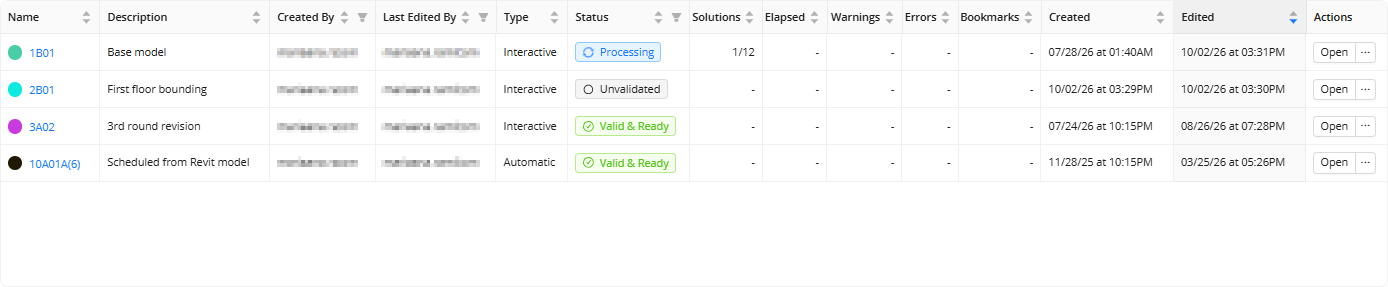
Name: The user-defined name of the study, color-coded for differentiation.
Clicking a name opens the study in the Study view.
Description: A short user-defined note to capture what makes this study unique from other studies in the project. (e.g., model changes, inputs updates, or design rules adjustments).
Created By: Indicates the user who originally created the study.
Last Edited By: Displays the user who last modified the study.
Type: Indicates if the study is Interactive or Automatic.
Status: Shows the current state of the study which could be any of the following:

Unvalidated: The default status of a newly created study which indicates that the inputs and design rules of the study aren’t validated yet. It could also mean that the study doesn’t have Model Inputs and Schedule Inputs yet.
Processing: ACP is analyzing the model, checking for issues, and generating conduit routing solutions for the study.

Valid & Ready: The study has been validated and is ready for generating solutions.
Elapsed: The total time taken for generating a solution in the study.
Created: Shows the date and time the study was created.
Edited: Shows the last time (date & time) the study was edited.
Actions: Provides a list of actions that may be taken within the study.
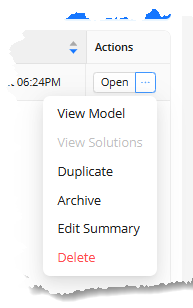
Open: Opens the study.
Duplicate: Enables you to make an exact copy of the study, which can be modified and regenerated.
Archive: Removes the study from the active view into the archived view.
Edit Summary: Accesses the Edit Study Summary window where you can modify the Study Name & Description.
Delete: Removes the study altogether.
The columns and actions below are references specific to the ACP development team and the Automatic Routing workflow. These are irrelevant for Interactive Studies and should be ignored.
Columns: Solutions, Warnings, Errors, and Bookmarks
Actions: View Model and View Solutions