As coordination progresses and racks shift, rearranging conduits within a rack to minimize crossovers may become necessary.
The Swap Conduit tool lets you easily swap the positions of conduit segments between two parallel runs.
The Swap Conduit tool is Selection Specific so the steps below reference the Modify tab workflow.
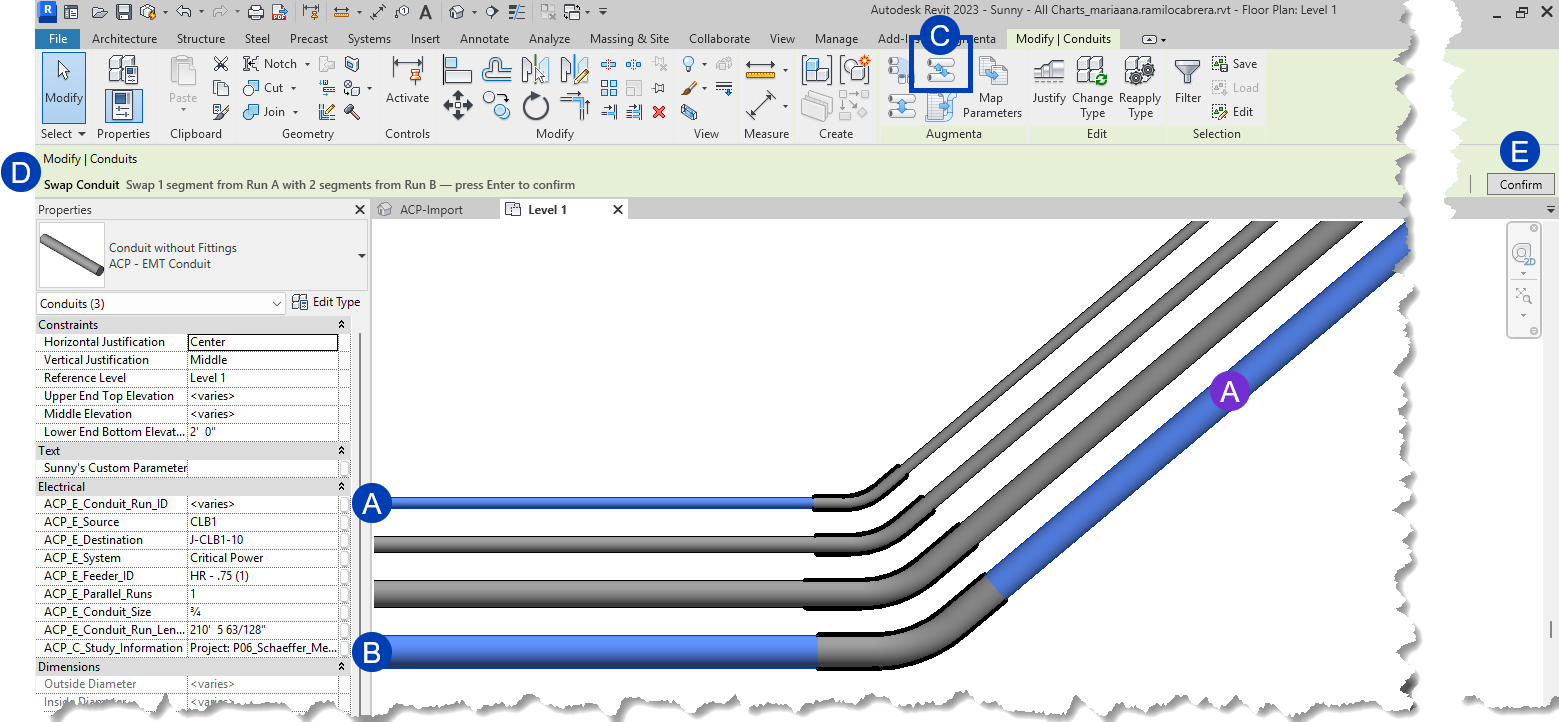
Select one or more segments from two parallel runs, such as
 and
and  .
. In the Modify|Conduit tab, click the
 Swap Conduit tool
  .
. If one segment from each run is selected, the swap happens immediately.
If multiple segments are selected, review the segment counts in the
 options bar,
 Click the
 Confirm button on the right side of the Options Bar to finalize the settings and implement the swap.
 or press ENTER.
The segment counts in the Options Bar include the total number of segments selected from each run. Review the counts to ensure the desired segments were selected.
Segments may not be swapped from more than two parallel runs at a time, but multiple parallel segments from the two runs may be swapped.
If a selected segment has no matching parallel segment in the other run, such as
, it will be skipped.
Review your results to confirm all intended segments were swapped.
For racks where conduits cross one another multiple times, handling one segment at a time will produce the most reliable results.
PRO TIP:
Because the Space Conduit, and Swap Conduit tools change the physical placement of the selected conduit within the project, the connecting conduit may be inadvertently adjusted as well.
To avoid this, do the following:
Delete the bends at major junctures where the segments to be modified connect to other conduits within the runs in the rack.
Make the Swap and Spacing changes to that section of the rack
Use the Trim Conduit tool to replace the needed bends for that section of the rack.