When working on projects with symmetrical layouts, such as in data centers and hospitals, copying and/or mirroring raceway segments eliminates repetitive manual drawing. This speeds up the process of creating raceway routes while ensuring design consistency across the Site.
This article covers the following workflows:
Copy segments
To copy segments, follow the steps below.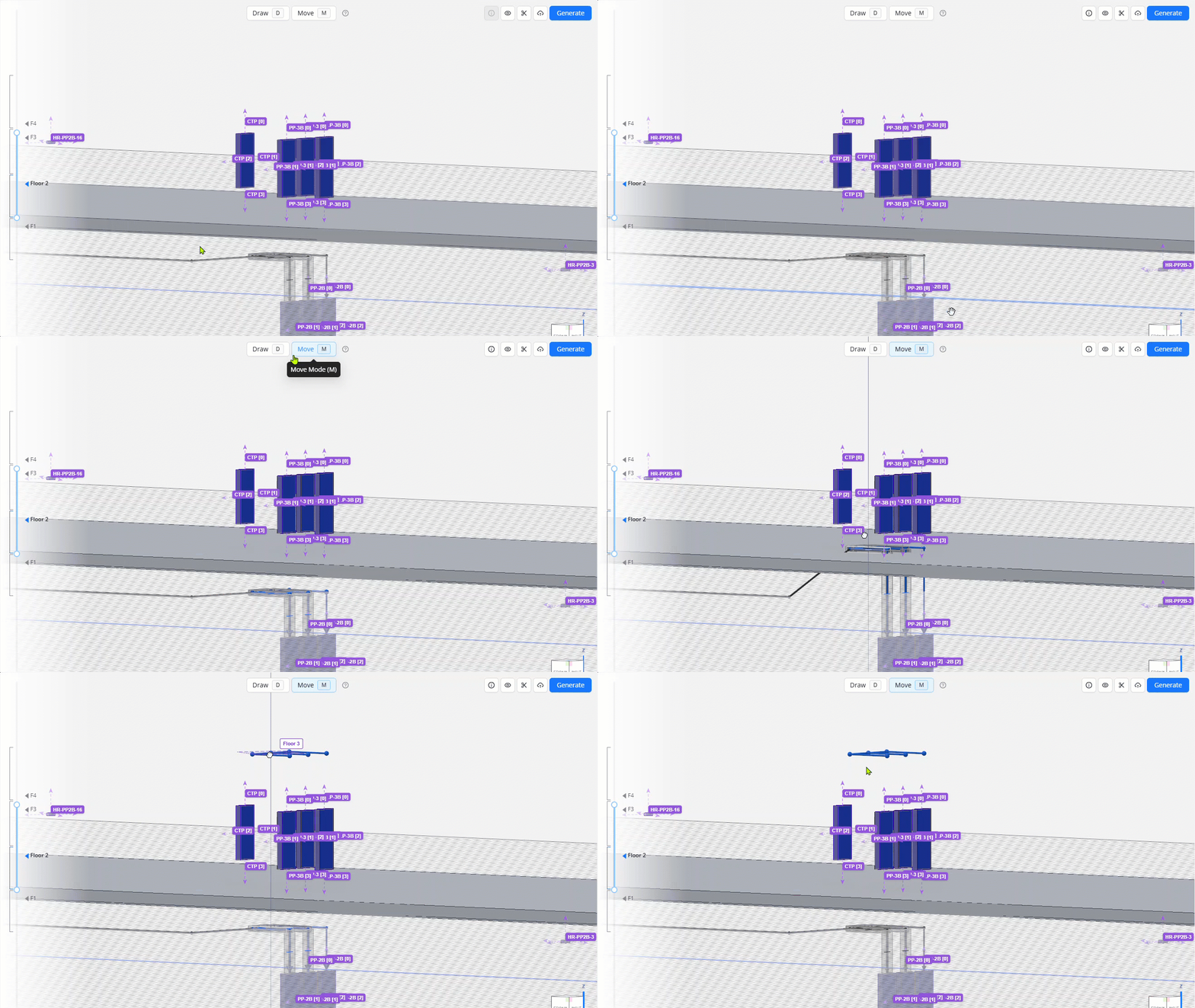
Adjust the view so the segments to be copied and the target location for the copy are both visible.
This allows you to place the copy in the target location right away, eliminating the need to do another move later.
Select the segments to be copied.
You can use any multi-select method.
Click Move in the Mode Selector to enter Move mode.
Or press the M hotkey.
Click and hold the left-mouse button (LMB) on the base point of the selection.
The base point is where the axis locks and where the cursor holds the copy before being placed.
(Optional) Switch to the drawing axis or plane where the copy should be placed.
Drag the selection along the drawing axis/plane to the target location.
To access standard bend angles from any drawing plane, press and hold the Shift key while dragging at an angle.
Once the selection is at the target location, press and hold the Alt key (Option ⌥ on Mac) then release the LMB.
A copy of the selection stays with the cursor as you hold down the Alt key, and the original returns to its position.
Once the LMB is released, the copy is committed to the study.
The copied segments are now the active selection, which you can use to create more copies without needing to reselect the segments.
To create multiple copies, repeat steps 4-7 on the active selection.
PRO TIPS:
To help maintain alignment with nearby elements, the copy snaps to the following:
Work Planes
ACP Surface Connector Target
Existing waypoints and segments
If the target location for the copy is a mirror of the original, you can also mirror the selection before releasing the LMB so the segments are copied in the same orientation as the target location.
Cancel copy
To cancel the copy at any point in the process:
Press Esc
Or click the right-mouse button (RMB)
 Copy Exclusions
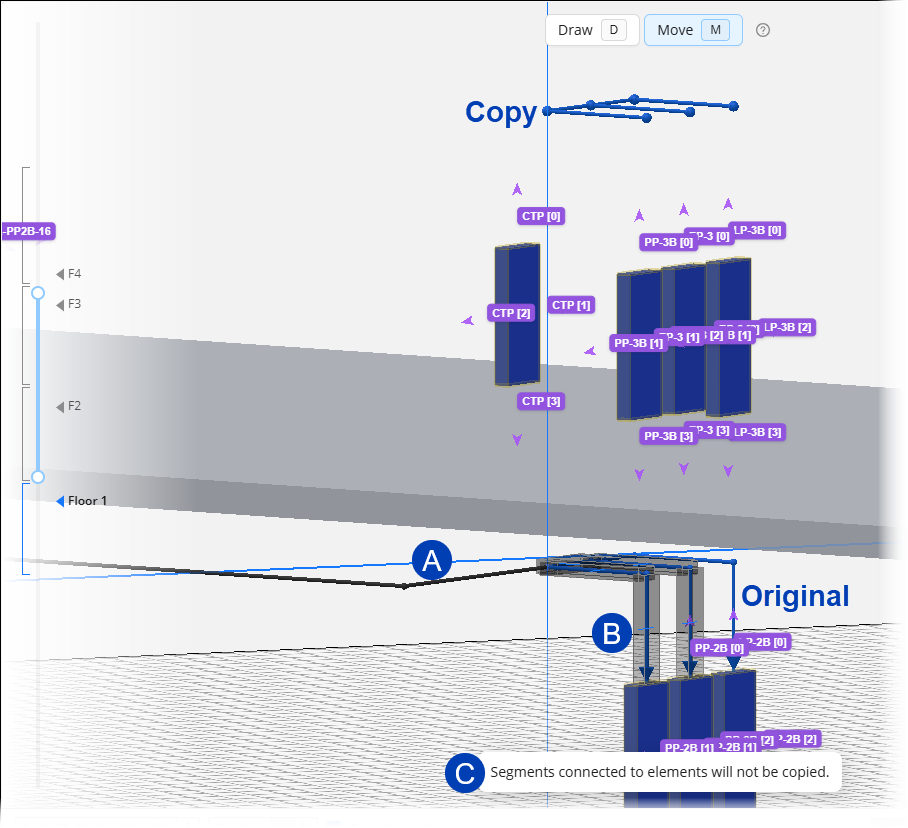
When copying a selection of segments, the following elements and details are intentionally excluded to minimize the needed modifications.
 Segments connected to the selection
Only the selected waypoints and segments will be copied.
 Segments directly connected to ACP Surface Connector Targets
Because there may be slight variations in the placement of electrical elements in different areas, excluding segments directly connected to Surface Connector Targets allows you to easily connect the copied segments to their new Sources and Destinations, either by drawing new segments or accepting Proposed Segments.
When segments are excluded from the copy, a banner stating
 Segments connected to elements will not be copied will be displayed at the bottom.
Rack Preview
Because the Rack Preview only appears for segments in completed raceway routes, it will not appear on copied segments until they are connected to a Source or Destination.
Any locked settings from the original will be retained in the copied segments.
Mirror segments
Mirroring allows you to flip selected segments along a selected axis through your selected base point. This is ideal for quickly reorienting segment/s without manually creating new segments.
Follow the steps below.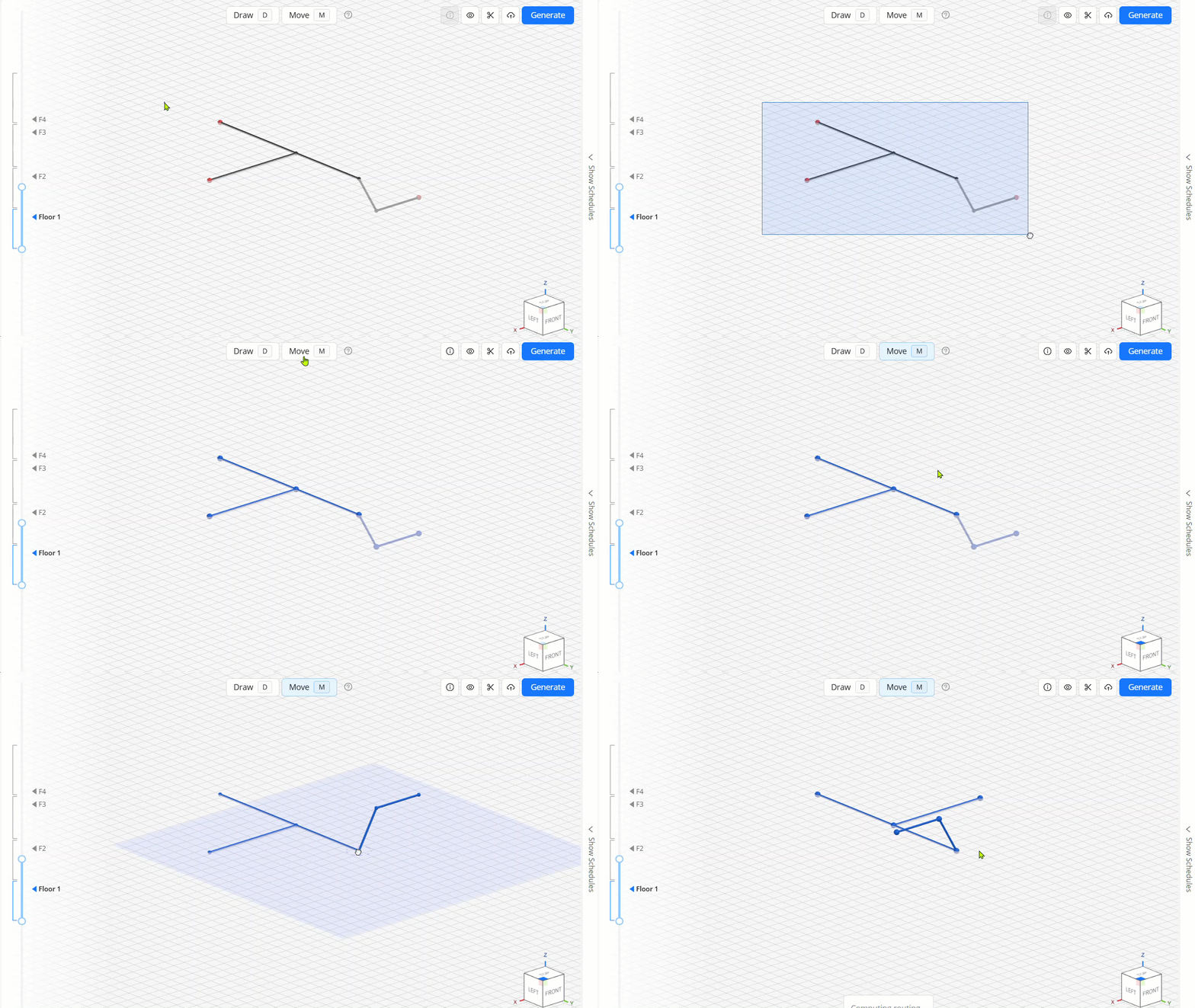
Select the segment/s to be mirrored.
You can use any multi-select method.
Click Move in the Mode Selector to enter Move mode.
Or press the M hotkey.
Click and hold the left-mouse button (LMB) on the base point in the selection to be mirrored.
The base point serves as the center point for flipping the entire selection.
To keep the selection from accidentally moving while mirroring, lock your movement to a single drawing axis.
For example, when locked to the Z-axis, the selection will not move horizontally even if you move your cursor sideways.
Press the key corresponding to the axis where the segments should flip.
A - Mirrors vertically along the Z-axis.
Without a vertical segment, mirroring along the Z-axis will not be noticeable.
S - Mirrors horizontally along the X-axis.
D - Mirrors horizontally along the Y-axis.
Pressing the same key again mirrors the selection along the same axis, returning the segments to their original positions.
To easily remember the position of each axis and the corresponding keys to mirror along them:
The View Cube visualizes the positions of the three axes.
On standard QWERTY keyboards, the key right above the axis/plane toggle corresponds to the flip keys.
For example, A is right above Z in keyboard placement.
(Optional) Press another key to stack mirroring across multiple axes.
Once finished mirroring the segments, release the LMB.
Working with copied and mirrored segments
Once the segments are copied and/or mirrored, they become Committed Segments which you can perform different actions on including the following:
Connect to Sources and Destinations
Because segments directly connected to Sources and Destinations are excluded in the copy, you can easily create the connections to the Sources and Destinations.
Undo copy/mirror
Copy and mirror can both be undone by pressing Ctrl + Z.