Managing studies effectively helps you keep track of key project information and avoid unnecessary rework. Open, duplicate, archive, or delete studies to keep your workflow clear and your project space under control.
This guide explains how to use the Duplicate, Archive, and Delete features for studies.
Open an existing study
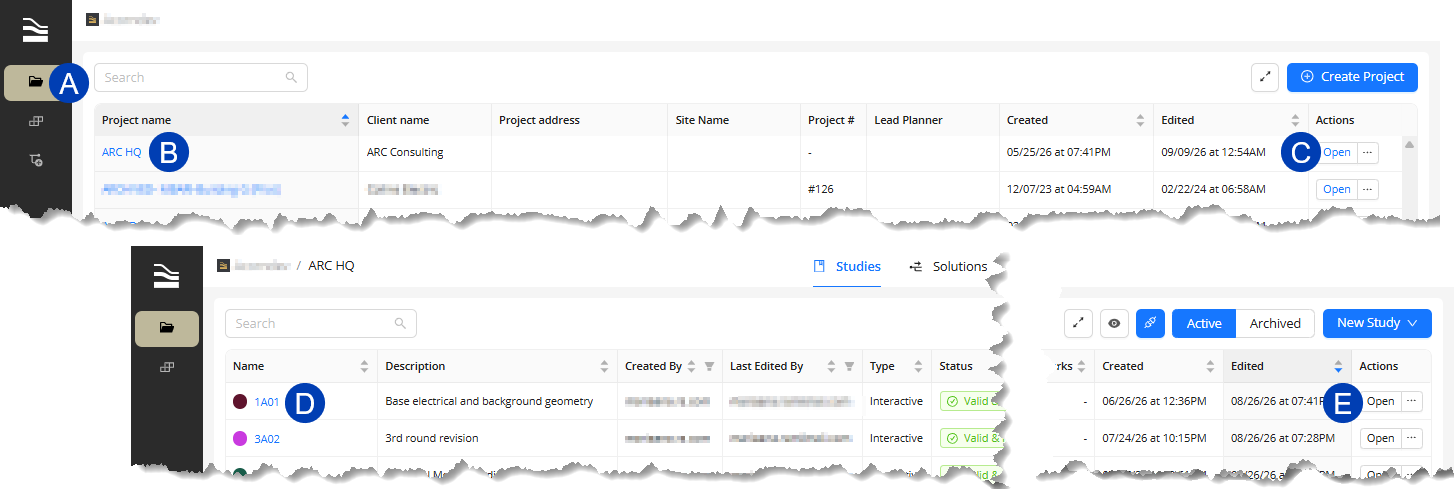 To open an existing study in your ACP Workspace:
Navigate to the
 Projects tab.
Open an existing project in one of two ways:
Click the
 project name.
Under the Actions column, click the
 Open button for the project you want to open.
In the Project view of the selected project, open an existing study in one of two ways:
Click the
 study name.
Under the Actions column, click the
 Open button for the study.
This opens the Study view.
Duplicate a study
Duplicating a study creates a copy of the original in which all data, except the study name and color, are replicated. You can then create new or edit existing raceway routes within the duplicated study and generate a new solution, allowing you to quickly iterate studies and explore various conduit routes without needing to recreate the study from scratch. A study can be duplicated at any stage of the ACP workflow.
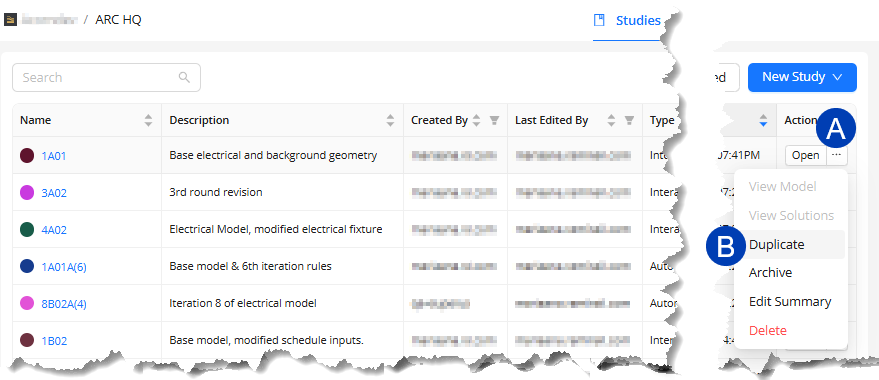
Follow the steps below:
From the Studies list within the Project view, hover over the
 ellipsis of the study to be duplicated under the Actions column.
Select
 Duplicate from the dropdown options.
In the Duplicate study pop-up, enter a
 Name for the duplicate.
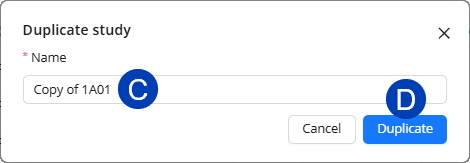 Click the
 Duplicate button to create a copy of the study.
Or select Cancel to exit the pop-up.
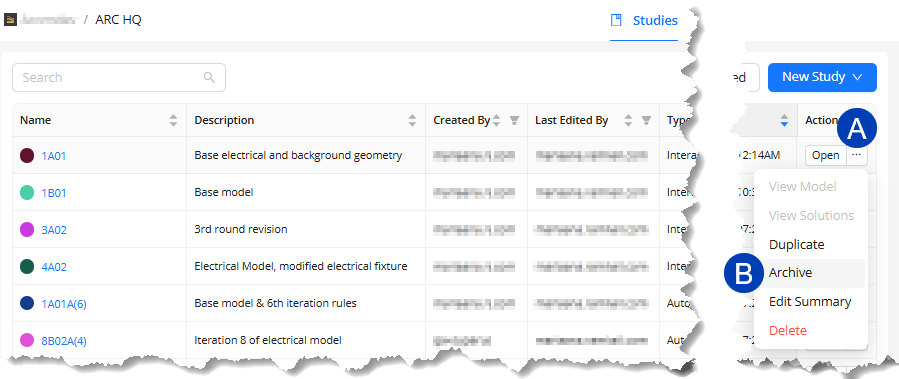 Archive a study
Archiving a study preserves past work for future reference, but removes the study from the Active Studies table. A study can be archived at any stage of the ACP workflow.
Follow the steps below:
From the Studies list within the Project view, hover over the
ellipsis of the study to be duplicated under the Actions column.Select
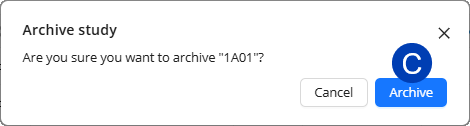
Archive from the dropdown options.In the Archive study dialog box, select the
 Archive button.
Or select Cancel to exit the dialog box.
 Restore an archived study
To restore a previously archived study:
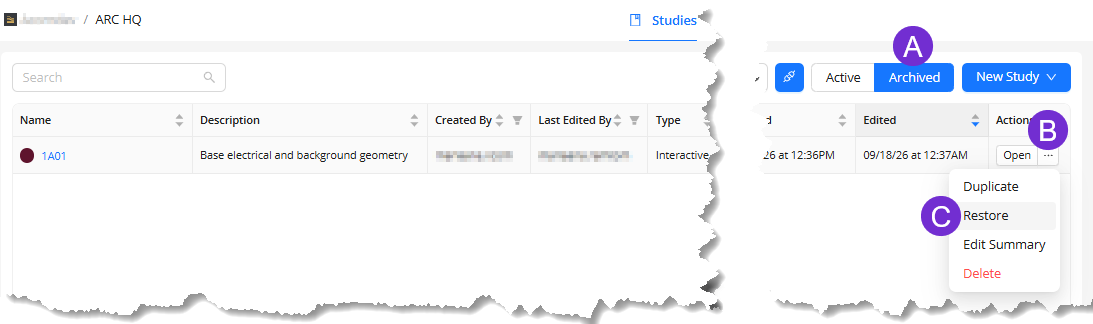
In the Project view, click the
 Archived button to view all archived studies.
Under the Actions column, hover over the
 ellipsis for the archived study you want to restore.
Select
 Restore from the dropdown options.
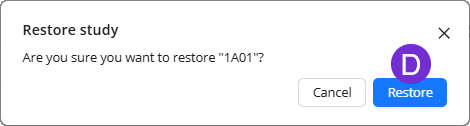
In the Restore study dialog box, select the
 Restore button.
Or select Cancel to exit the window.
Delete a study
Deleting a study permanently removes it from ACP, helping users declutter their project by eliminating outdated or unnecessary studies.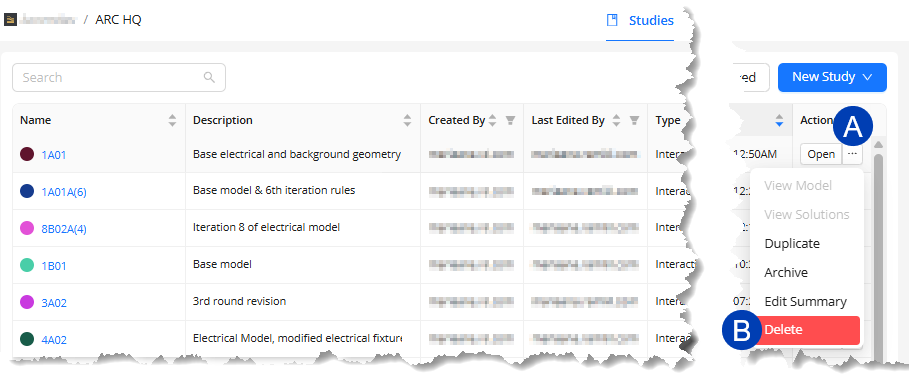
Once a study has been deleted, it cannot be retrieved.
From the Studies table within the Project view, a study can be deleted at any stage of the ACP workflow.
Follow the steps below:
Under the Actions column, hover your mouse cursor over the
ellipsis for the study to be deleted.Select
Delete from the dropdown options.In the Delete Study dialog box, select the
 Delete Study button.
Or select Cancel to exit the dialog box.