Exporting a conduit solution from your ACP Study into your Revit project rebuilds its components into native Revit conduit elements.
This article walks through steps to export a solution from an ACP study into a Revit project.
 Export the solution
You can export a solution by following the steps below:
Launch ACP from the Revit project the solution will be exported to.
In the Projects tab, open the ACP Project, and then the study where the solution you want to export is generated in.
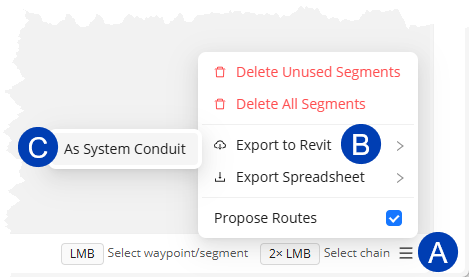
In the Model Viewer, click the
 Menu button.
From the options, hover over
 Export to Revit then select
  As System Conduit.
 This initiates the export into your Revit project. Minimize the ACP window to view the export’s progress within Revit.
If worksharing is enabled for your Revit project, the exported conduit solution will be assigned to the ACP - Conduit Export workset which is created during project initialization.
By default, this workset is not Visible in all views, allowing you to select the view(s) where the exported solution should be visible.
When you export a solution, the active view’s visibility settings are automatically overridden to Show this workset.
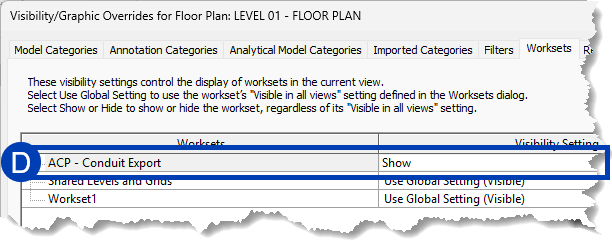 (Optional) To make the solution visible in other views, override the Visibility Setting of the ACP - Conduit Export workset to
  Show in the view’s Visibility/Graphic Overrides.
PRO TIP:
To make the exported solution(s) visible in all views:
Navigate to the
Collaborate tab.
In the Manage Collaboration panel, select the
Worksets tool.
In the Worksets window, select the checkbox for the ACP - Conduit Export workset under the
Visible in all views column.
Select
OK.
Multiple solutions can be exported into a single Revit project.
When you use the Select Generated Elements
tool to select a solution, it will launch the ACP Inspect Solutions panel where you can select or isolate the elements of a solution.
After Export
ACP doesn’t copy geometry into Revit. Instead, it rebuilds the ACP conduit solution using the ACP - EMT Conduit type created during project initialization. The ACP properties of each component element of the solution are populated based on the ACP schedules and study information.
ACP provides the following tools to help with the post-export review and modification process.
ACP Conduit Run Schedule - Allows you to easily review and modify the parameters of each raceway.
Edit tools - A set of tools in the ACP Revit add-in which allows you to visually identify, select, and modify the solution and/or parts of it.
PRO TIP: While working with the exported conduit solution, you may choose to convert the conduit system type to other conduit types. To ensure conduit runs continue to appear in the ACP Conduit Run Schedule, we recommend converting to a system type within the Conduit without Fittings family.