The 3D view named ACP-Import (created during project initialization) in the Revit project determines which elements are imported into the ACP Study as part of the Site Data.
Because the ACP-Import view is where ACP pulls all of the Revit data, if the add-in detects that this view is missing, you will be prompted to initialize the project again when you open a project in ACP. Other error messages may also appear if you attempt to use different tools in the Augmenta tab when the ACP-Import view is missing.
This article provides guidance on how to set up the ACP-Import view to specify the geometry which should be imported into the ACP study.
Site Data
In an ACP study, the Site Data serves as one of the bases for routing, Clash Detection, and Solution Generation. It includes the Electrical model and Background geometry which are both imported from the ACP-Import view.
Electrical model
Identifies the location and size of Electrical Equipment and Electrical Fixtures which ACP will use as sources and/or destinations, and their associated properties.
 Existing conduit runs in the Revit project are imported as part of the Background geometry.
Background geometry
Includes all elements in your Revit model (linked or otherwise) which aren’t Electrical Fixtures or Electrical Equipment. It provides the visual layout of the building and the spatial context needed for Clash Detection.
Controlling geometry
ACP only imports model elements which are both visible in the ACP-Import view and is fully-enclosed within the ACP-Import view’s section box at the time the Site Data is imported into the study. Because of this, managing visibility settings and section box boundaries in the ACP-Import view is critical to creating clean, accurate imports and preventing unneeded geometry from being imported, or essential geometry from being missed.
PRO TIP:
Use the Inspect Model tool to review the ACP-Import view for Unexpected Categories and High-Detail Elements which may cause issues in importing Site Data as well as in generating conduit.
The following sections explain how ACP evaluates your Revit project for importable geometry.
Using visibility settings
ACP imports geometry from the ACP-Import view in your Revit project based on the applied visibility settings. It follows most of Revit’s standard controls: Category/Subcategory, View Filters, Worksets, Revit Links, Phases, and Design Option.
These visibility settings can be configured either in the view controls of the ACP-Import view or in the ACP-Import-Template, which is automatically applied when the ACP-Import view is created.
Exceptions
While most visibility settings are supported, a few limitations and exceptions apply.
Refer to the table below.
Feature | ACP Behavior |
|---|---|
Detail Level | All geometry is imported at Fine detail level, regardless of the setting in the ACP-Import view.
|
View Scale | Ignored. Geometry is imported and visualized the same in ACP regardless of setting. |
Visual Style | |
Graphic Display Options | |
Underlay Visibility Override for Revit Links | |
Crop Region | Ignored. Crop regions should only be applied to 2D views. |
Non-physical elements such as:
| Excluded from Import. These elements are intentionally excluded from the import due to their lack of physical geometry. |
Specific Model Elements | Excluded from Import. These elements are intentionally excluded from the import because they cause issues with the building analysis and routing.
|
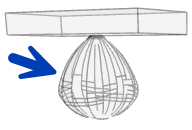 Light Sources - Elements within the Light Fixtures subcategory that carry IES data for specific fixtures. They typically create many unique surfaces, which can significantly slow down ACP processing when imported.
Avoid using the Hide Elements command regularly. Elements hidden using this may be hard to track as your Revit project grows. Instead, manage visibility with Category Overrides, View Filters or Worksets for better control.
Using the View Template
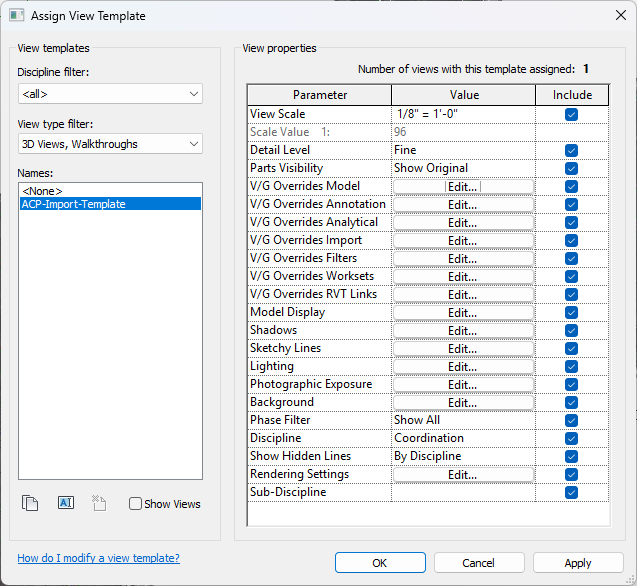 When the ACP-Import view is created, the ACP-Import-Template view template is automatically applied to it. By default, all visibility settings are included in this view template with the suggested configuration commonly used for importing geometry into an ACP study. However, the settings for Worksets and Revit Link overrides (which are project-specific) will likely need to be manually adjusted within the view template.
Model Categories
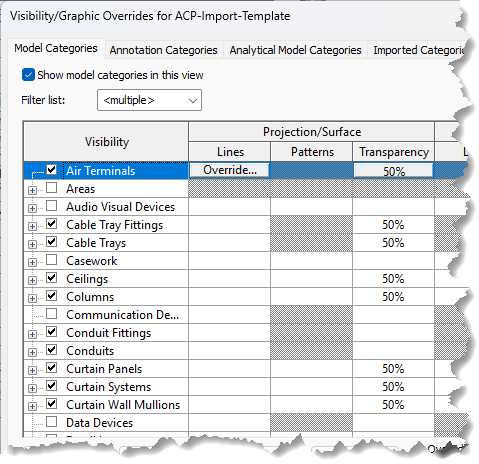 In the ACP-Import-Template, the Visibility has been turned off for some model categories to minimize the amount of geometry imported into the ACP study, allowing for a more efficient process and less time required to Generate solutions.
These model categories have been found to be regularly excluded from the ACP import because they are not considered obstructions which ACP needs to consider in creating routes as they are typically:
Embedded in walls
Lower than typical rack height
Not required for clash detection
Setting the Section Box
The Section Box in the ACP-Import view limits the extents of the model which gets imported into the ACP study. All elements which are outside of the Section Box will be excluded from the import.
By default, the Section Box expands to the full model extents, encompassing all elements regardless of their location. This can be problematic when linked models contain elements located far from the actual building. The model extents stretching far outside the building may cause navigation issues such as extreme swings when orbiting or an excessively zoomed-out view of the model, making it hard to navigate back to the area you’re working on.
The Section Box may be adjusted to encompass different model regions in two ways: by manual adjustment or by assigning a Scope Box to the view.
.png) Without a Scope Box assigned to the view, the Section Box may be manually moved and resized.
To move the Section Box, select its boundary then drag to the preferred location.
To resize the Section Box, select its boundary then use the pull points (such as
 ) in each face for adjustment.
Ensure that the Section Box is enabled and/or a Scope Box is assigned to the view.
If the Section Box is unintentionally disabled, all visible geometry will be imported which can negatively impact Model Viewer performance, especially in large projects.
Scope Boxes may be created for different model regions and alternately assigned to the ACP-Import view to process each one separately.
Follow the steps below to create a Scope Box and assign it to the ACP-Import view.
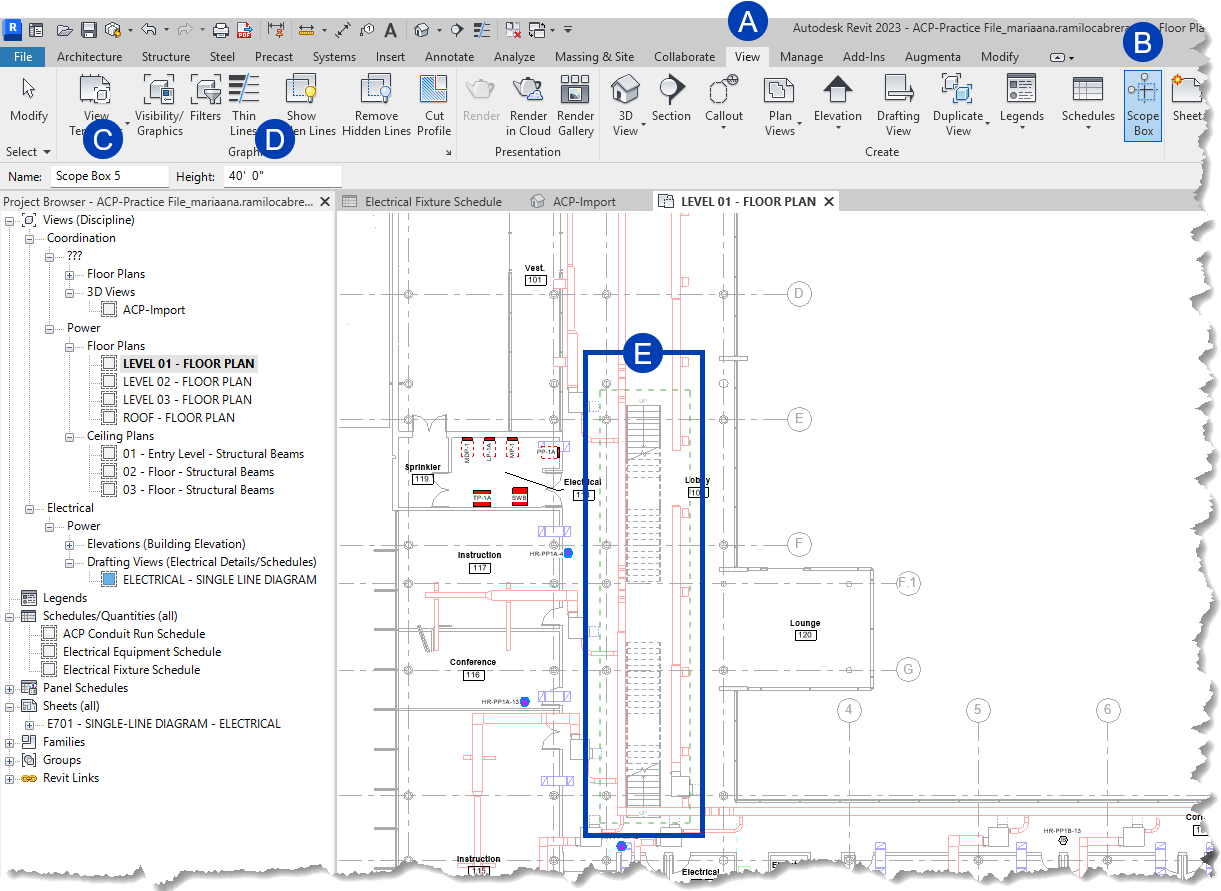 Create a Scope Box
Open the plan view in which you want to create a Scope Box.
Scope boxes can only be created in plan views.
Navigate to the
 View tab in the ribbon.
Select the
 Scope Box
 tool within the Create panel.
On the Options Bar, specify the
 Name and
 Height for the scope box
Scope Boxes can extend between floors.
A default Name will be assigned to the Scope Box if you don’t specify one, but it’s recommended to give it a descriptive name to easily reference it.
To draw a scope box, click in the view where you want to place the Scope box and drag to enclose the
 area you want.
The scope box will display as a green dashed line around the boundary.
Click again to finish placing the scope box.
Assign a Scope Box to the ACP-Import view
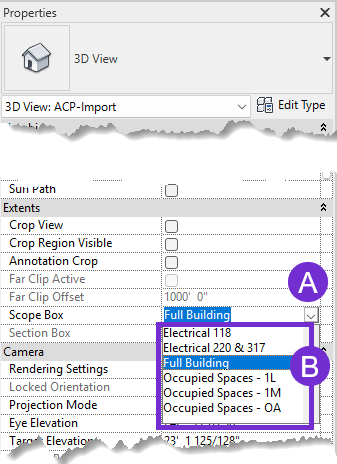 Open the ACP-Import view.
In the Properties palette, click the
 dropdown for Scope Box.
Select from the
 options.